This page provides a quick overview of the essential features you’ll use every day as part of the migration to Microsoft Teams phone. Whether you’re signing in for the first time, placing or answering calls, or trying to learn more advanced tasks like setting up a delegate, these steps should help you navigate the new calling experience.
Signing in
Signing into Microsoft Teams, Web App:
- Go to https://teams.cloud.microsoft/
- Log in with your St. Lawrence email/password
Signing into Microsoft Teams, Desktop App:
- Launch the Teams application
- If prompted, log in with your St. Lawrence email/password
- Under account type, choose "Work or School"
Placing a call 🔝
You can place calls using your computer or with a mobile device using the Teams app (iOS or Android).
Computer
- Open Microsoft Teams
- On the left side menu, click Calls.

- Option A: Dial a Phone Number
- Use the dial pad or type a phone number in the Type a name or number field and select:

- Option B: Call a Teams Contact
- type a name or SLU email) in the Type a name or number field and select:
- Option C: Call from Chat or Contacts
- From a chat or contact card, select camera icon (for video call) or phone icon (for audio call)

Mobile device
- Open the Microsoft Teams app.
- Tap the ... More button at the bottom of the screen.
- Tap Calls.
- Tap the Phone+ icon toward the bottom right of the screen to launch the dial pad.

Answering a call 🔝
Computer/Mobile device
When you receive a call, you will see a notification in the corner of your screen:

- Click the Camera icon to answer as a video call
- Click the Phone icon to answer with audio only
- Note: you will be able to add video after if desired
- Click the Red icon to decline the call
- Note: Declined calls will go immediately to voicemail
Putting a call on Hold 🔝
Computer/Mobile device
- When in an active call, select the Hold option from the active call toolbar:

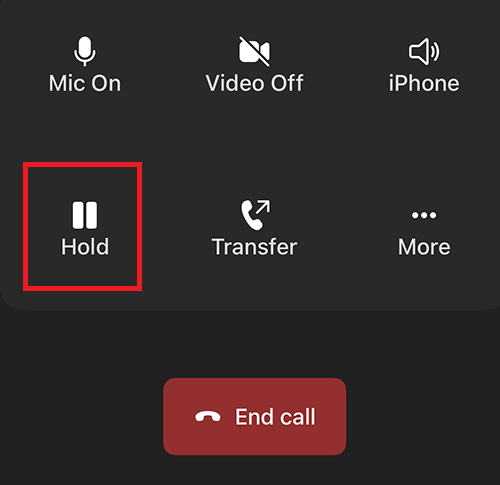
- When a call is on hold, click Resume to return to the call.
Transferring a call 🔝
Computer/Mobile device
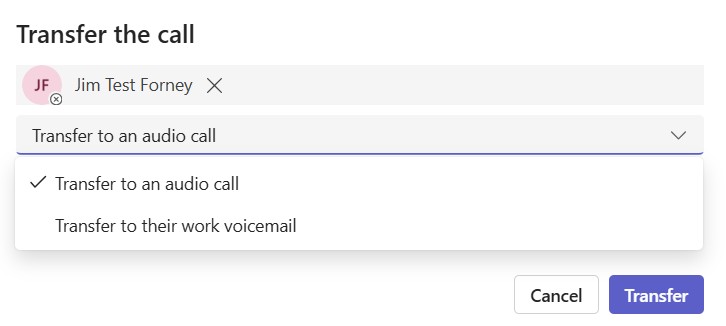
- When in an active call, select the Transfer option from the active call toolbar
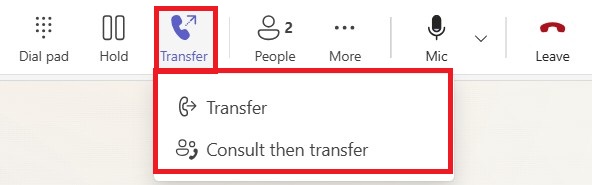
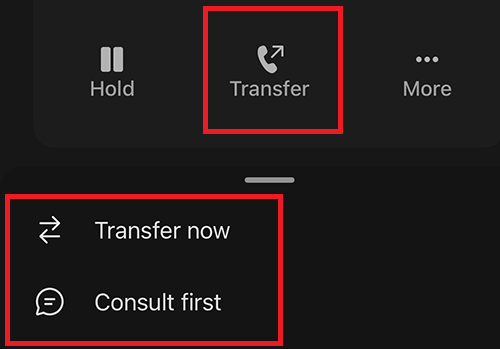
- Choose Transfer to send the call immediately to the party (or directly to their voicemail)
- Type the name (or number) of the person you want to transfer the call to
- You can also select to have the call ring back to you if there is no answer

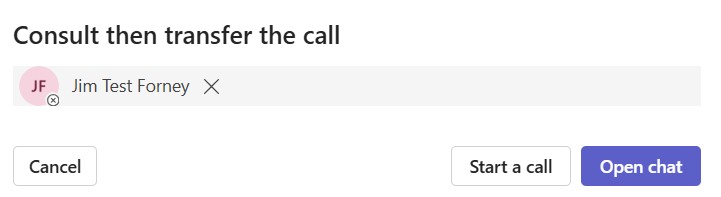
- Choose Consult to notify the party prior to sending the call
- Type the name (or number) of the person you want to transfer the call to
- You can Start a call to speak to them or Open chat to send a message