
Adding a Shared Mailbox to Outlook
Instructions
Outlook Webmail
- Open Outlook. If you are prompted to sign in, enter your St. Lawrence University email address and password.
- On the upper right of the webpage, click the Settings gear icon.
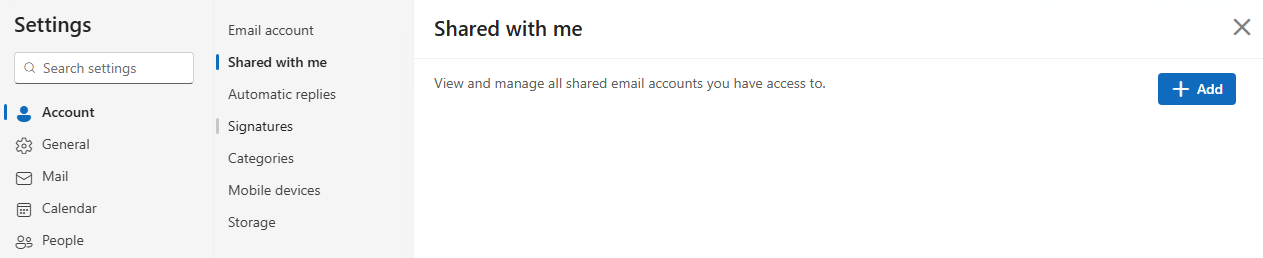
- On the left pane, select Account.
- On the middle pane, select Shared with me.
- On the right pane, click + Add.
- In the box that appears, enter the email address of the shared mailbox.
- Click Continue.
- After a confirmation is displayed, click Close.
- Restart Outlook.
- The mailbox will now be visible in the left pane of Outlook.
New Outlook for Windows, Office 365
- Open Outlook. If you are prompted to sign in, enter your St. Lawrence University email address and password.
- Right-click on your email account in the side viewing pane.
- Click Add shared folder or mailbox.
- Type the name of your shared account and click Add.
- Restart outlook.
- The mailbox will now be visible in the left pane of Outlook.
Legacy Outlook for Windows, Office 365
- Open Outlook. If you are prompted to sign in, enter your St. Lawrence University email address and password.
- Select the File tab.
- Click Account Settings in the drop-down menu.
- Click Account Settings.
- Click on your email.
- Click Change...
- Click More Settings.
- Click Advanced.
- Click Add...
- Enter the name of your shared mail account.
- Click Ok.
- Click Apply.
- Click Ok.
- Click the X to close Exchange Account Settings.
- Click Close.
- Restart Outlook.
- The mailbox will now be visible in the left pane of Outlook.
New Outlook for Mac
- Open Outlook. If you are prompted to sign in, enter your St. Lawrence University email address and password.
- Verify you are using the current version of Outlook for Mac. To do so, in the toolbar, click Outlook.
- If there is a checkmark next to Legacy Outlook, uncheck it and click Switch to Outlook.
- If there is no checkmark next to Legacy Outlook, skip this step.
- In the toolbar, click Outlook.
- Click Settings.
- Click Accounts.
- Click the arrow to the right of your Microsoft 365 account.
- Click Delegates & Sharing.
- Select the tab Shared with me.
- Click the + symbol.
- Search for the shared mailbox.
- Select the shared mailbox and click Add.
- The mailbox will now be visible in the left pane of Outlook.
More information
For more information, see Microsoft's official support articles: