
RegistrarConnect For Students
Navigating the RegistrarConnect Portal
RegistrarConnect is designed to replace all former Registrar's Office tickets and request forms. This new system will allow you to submit add/drop tickets, file academic petitions, and even make updates to the information in your student record. We understand that every new tool takes time to learn and the Registrar's team has developed the following tutorials and guides to help you successfully navigate this system.
Please note that RegistrarConnect will not replace any of the functionality now offered in APR2. We encourage everyone to check APR2 options for accomplishing any given request before submitting a RegistrarConnect request.
Important Note About Instructor/Advisor Permissions in RegistrarConnect
Our new system is built to streamline many aspects of registration requests and academic petitions. The majority of requests that require students to receive permission from their instructors and/or advisors are now automated. When you submit a ticket, the system will know what type of permission you need to receive based on the type of request. You will then be asked to select the relevant instructor, advisor, or department chair that you wish to review your request. The system will then notify the necessary parties who will review your request and then confirm or deny their permission. Once your request has received all the relevant permission(s), it will be sent to the Registrar's team for processing.
Students are still expected to speak with all the necessary approvers (instructor, advisor, etc.) before they submit a request to prevent confusion.
Instructions
- You will receive an email notification when your request is processed, if/when your request is denied, or when the registrar's office needs more information to process your request. These notifications will contain important explanations and instructions so make sure to check your email for such messages. These emails are delayed by up to one business day from the time your request is denied, processed, or requires more information.
- You can always view the current status of your requests in RegistrarConnect. These statuses automatically update anytime there is a change with your request. The above mentioned email delay means that you may see your request updated in RegistrarConnect up to one full business day before you receive the email notification with specific notes and/or instructions.
- Log into the RegistrarConnect Portal
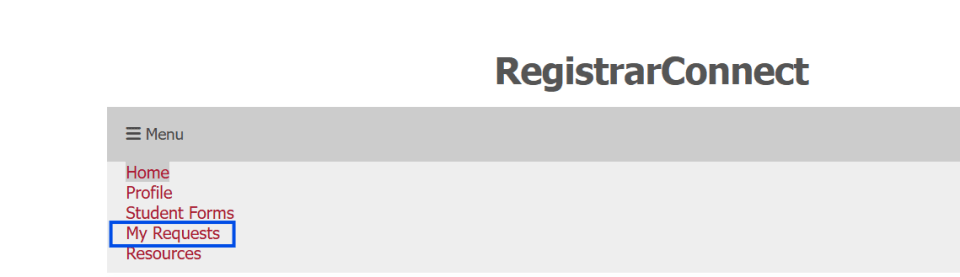
Open the Menu tab and click on the "My Requests" Link:
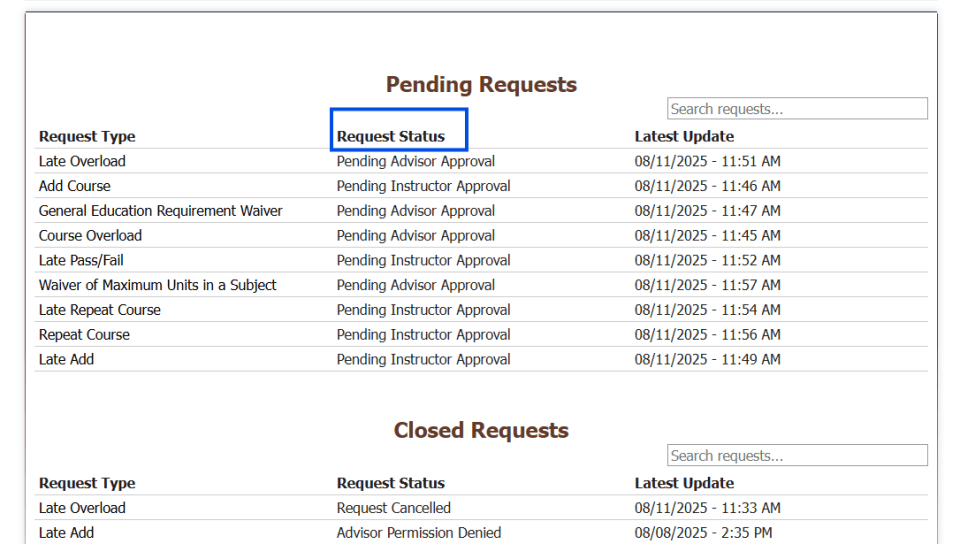
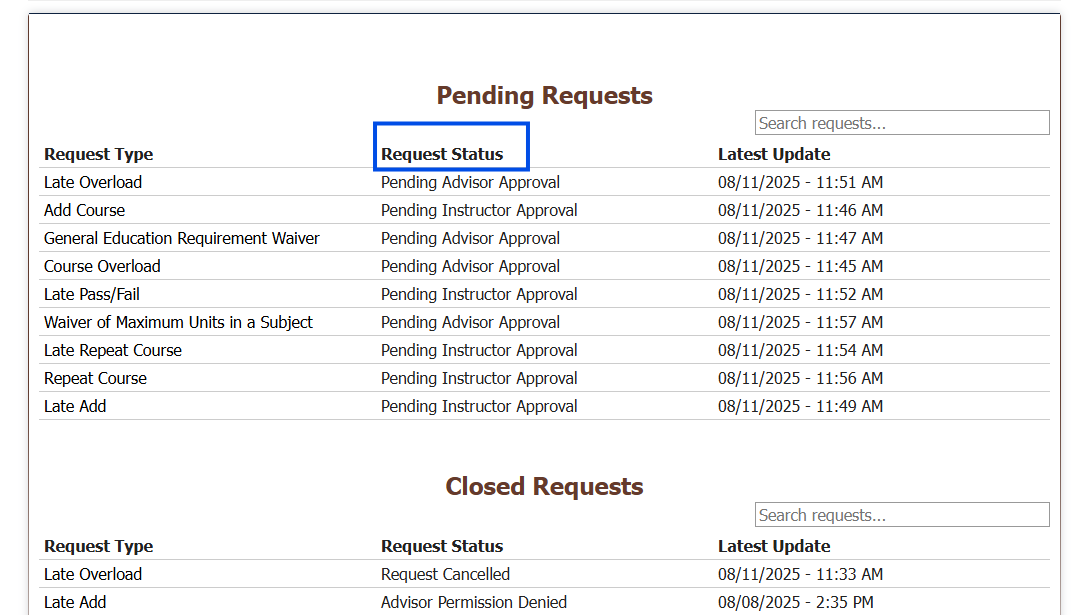
The "My Requests" page will show you a full list of your pending requests as well as a list of your closed requests (requests that have been processed or denied). Look under the "Request Status" Column to see the lates status of your request:
- You can then click on the request in question to see more information about the request itself:
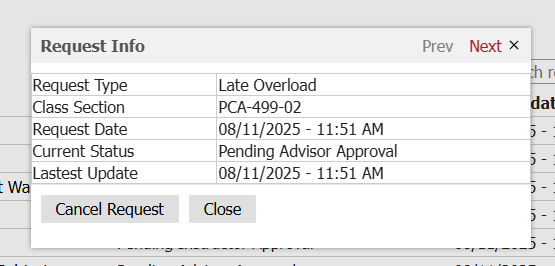
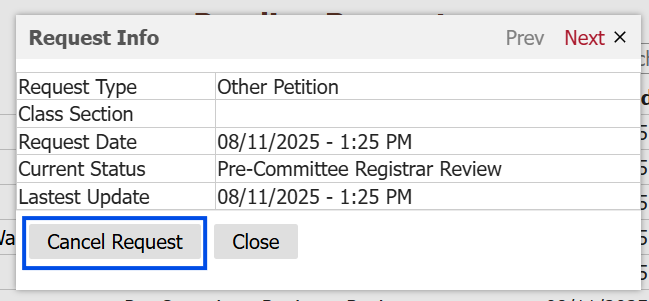
To cancel your request click on the "Cancel Request" button. You can only cancel pending requests with this feature.
- Log into the RegistrarConnect Portal
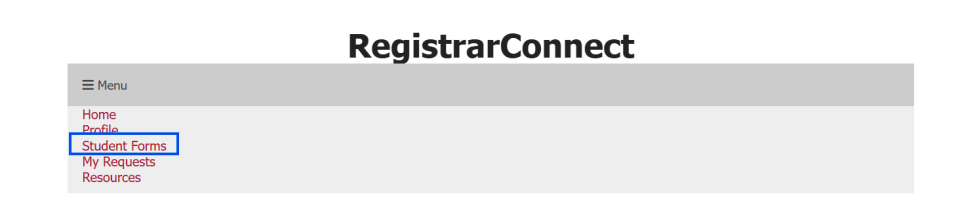
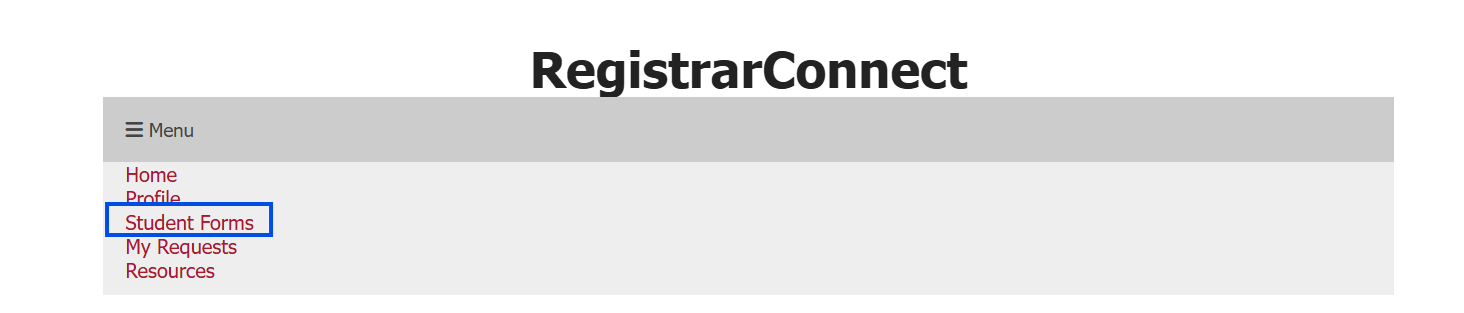
Open the menu tab and click on the "Student Forms" link:
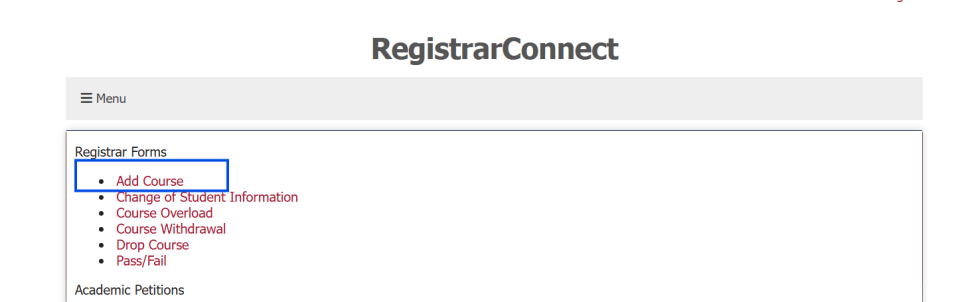
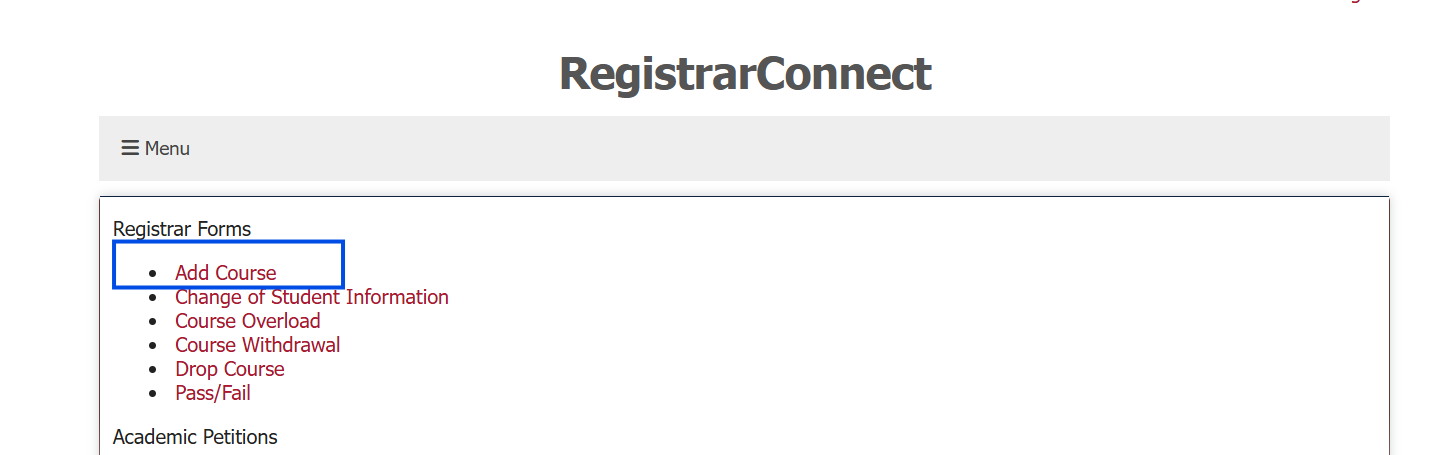
Click on the "Add Course" link under the Registrar Forms heading:
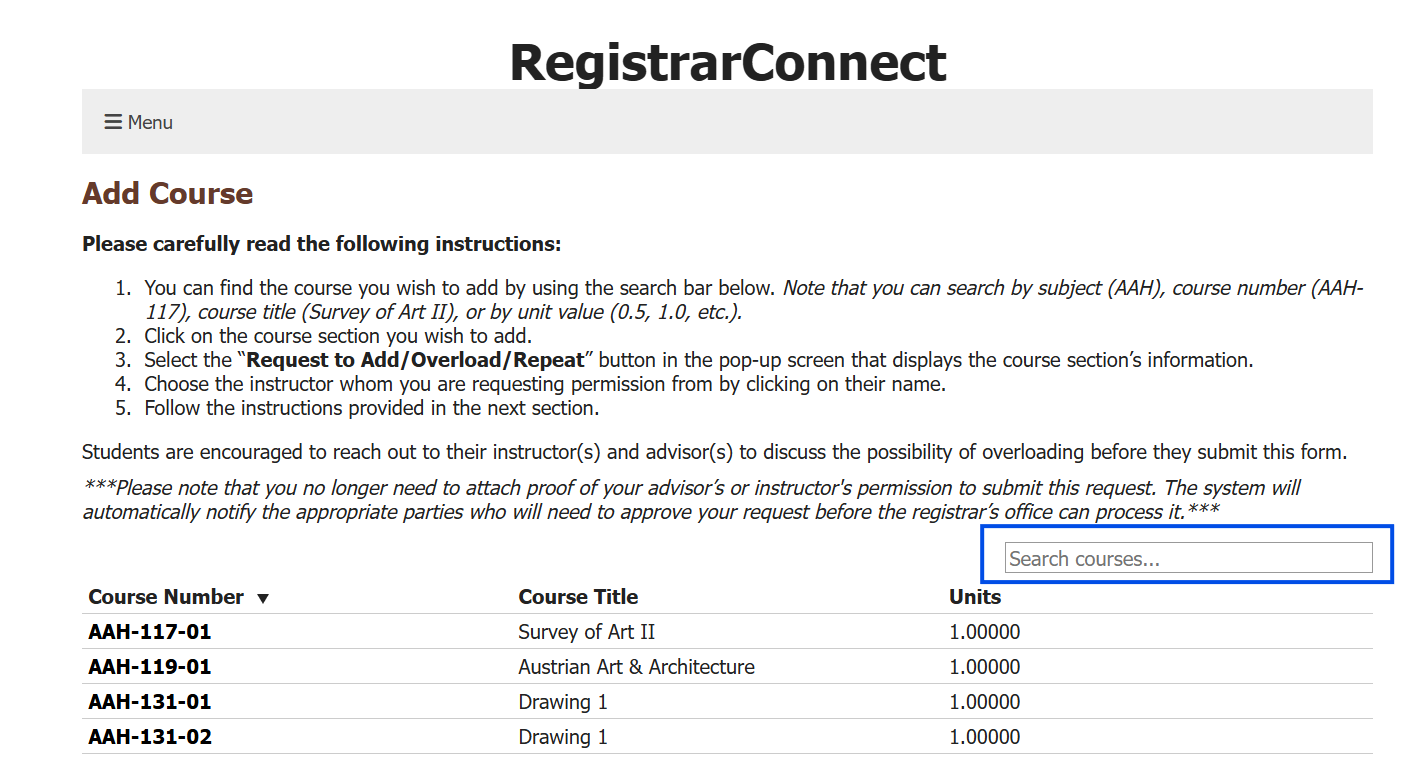
Use the search bar to find the course section you wish to add. You can search by subject (AAH), course number (AAH-117), course title (Survey of Art II), and unit value (0.5, 1.0, etc.).
a. Please note that you will only be able to add course sections that are active for the current registration term. If you cannot find the course you are looking for (such an independent study section) then you will need to reach out to the course instructor and ask them submit the ticket with the Registrar's Office to get you registered in their section.
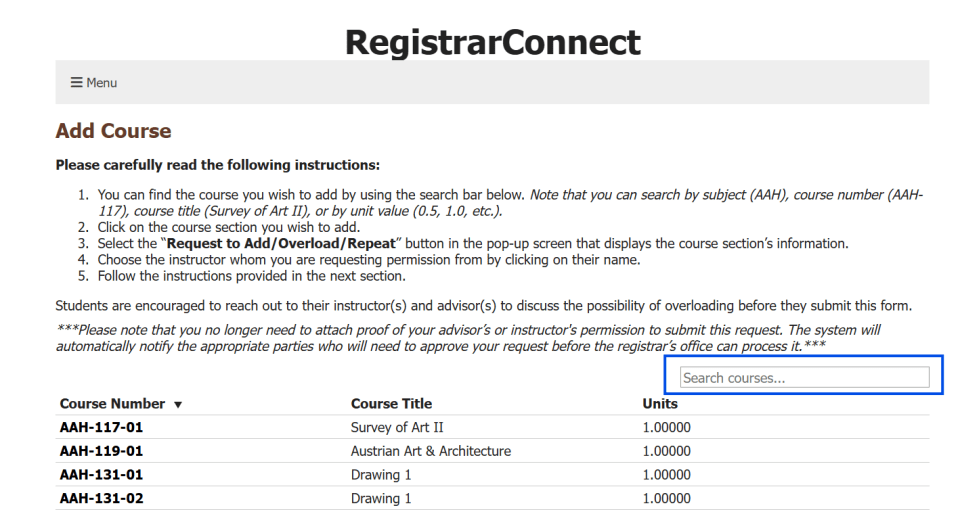
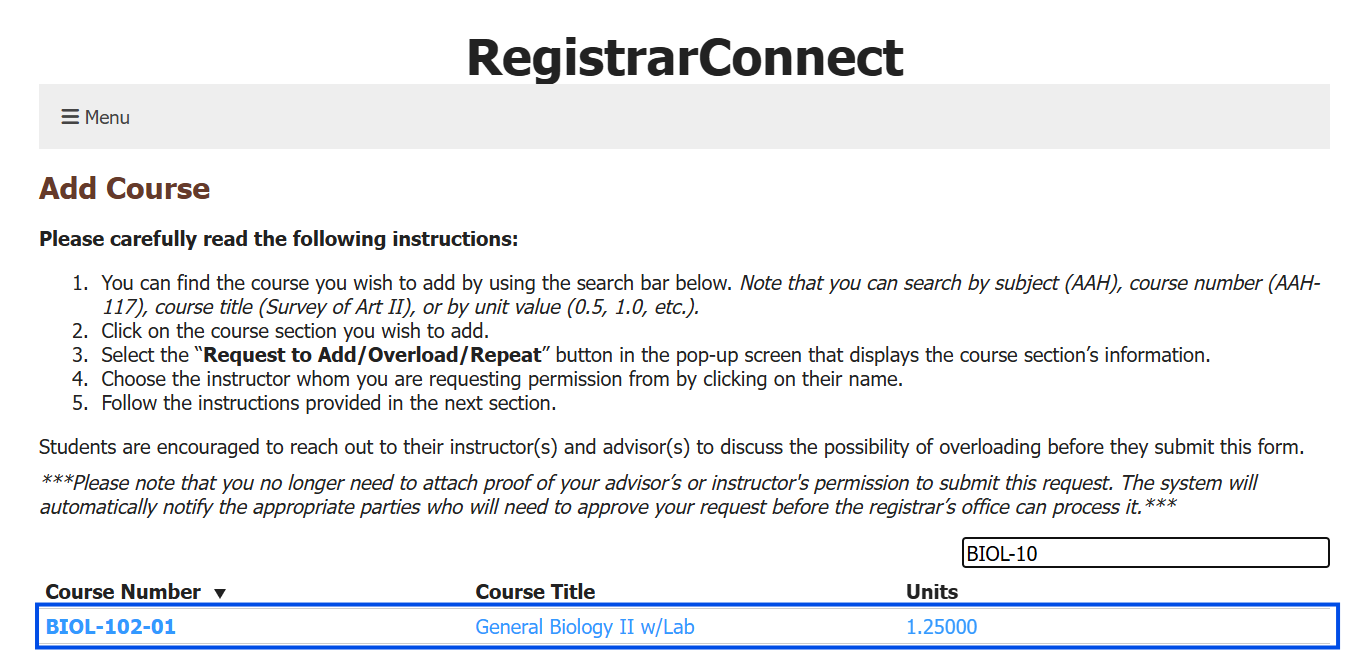
Click on the course section you wish to add:
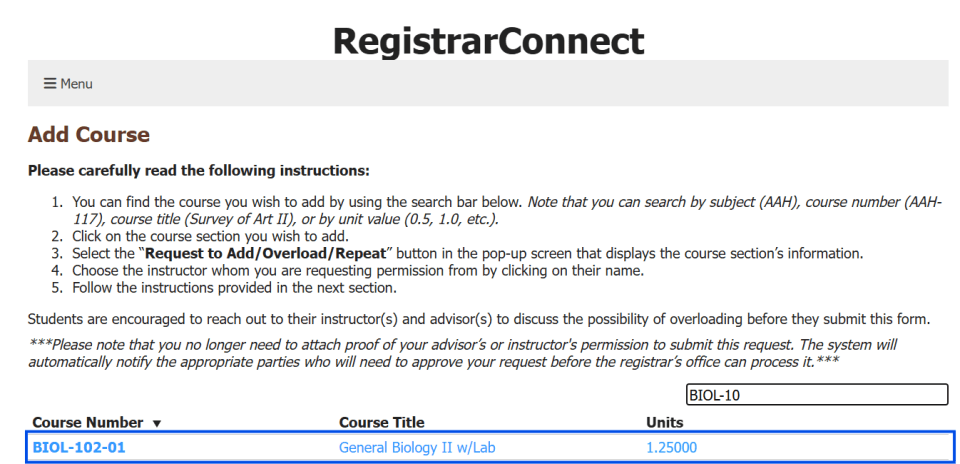
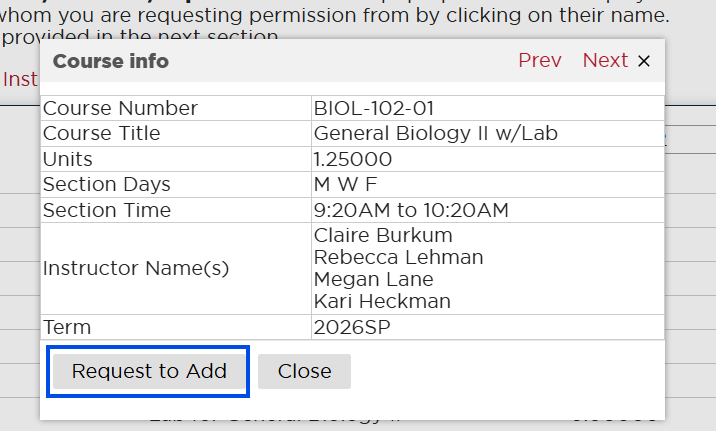
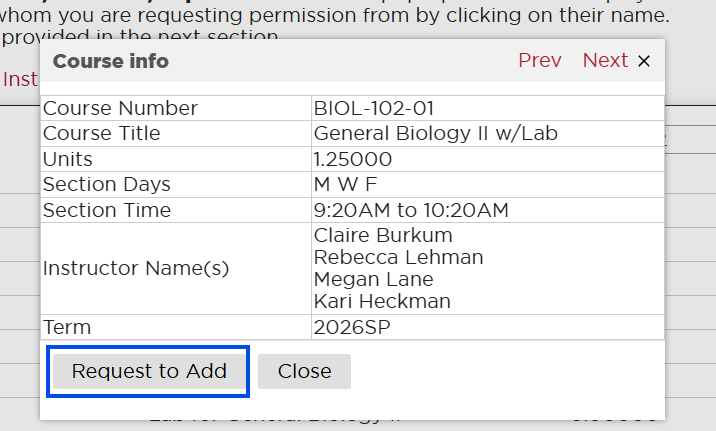
You will see a pop-up screen that displays the relevant information for that course section. Once you are sure this is the section you wish to add, click on the "Request to Add" button:
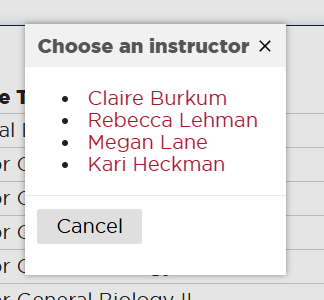
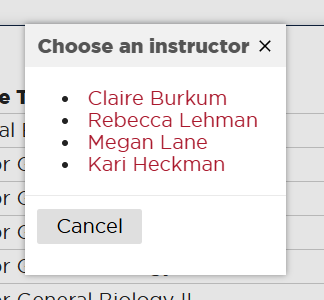
You will see a second pop-up that lists all of the instructors that are teaching this section. Choose which instructor you wish to ask permission from to add the course. If there is only one instructor listed on the section then you must click on that name to proceed.
- Once you choose an instructor you will be taken to the final section of the add form. Follow the instructions given in this section and click "Submit" at the bottom of the screen.
- Log into the RegistrarConnect Portal
Open the menu tab and click on the "Student Forms" link:
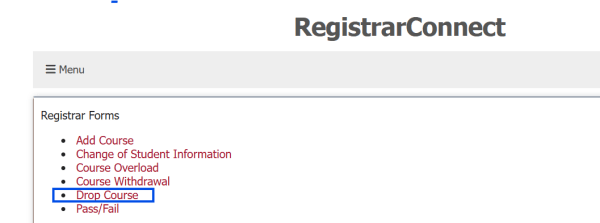
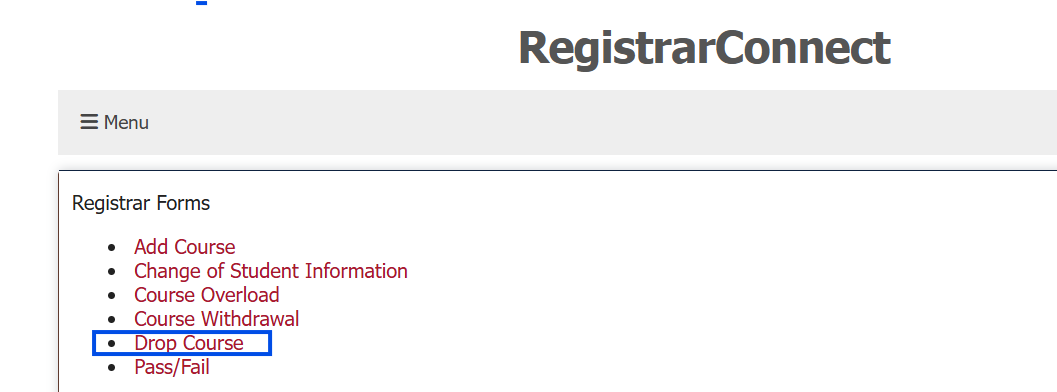
Click on the "Drop Course" link under the Registrar Forms heading:
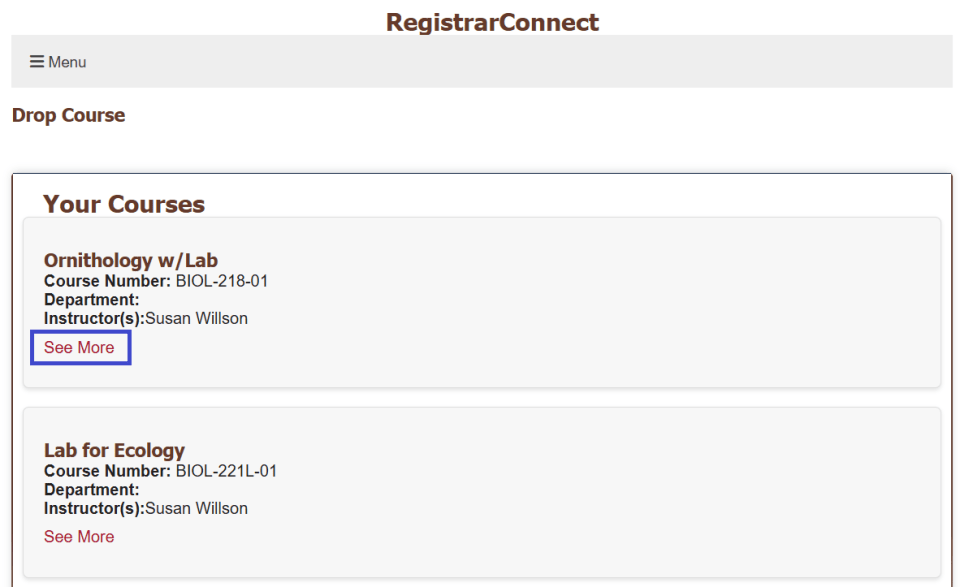
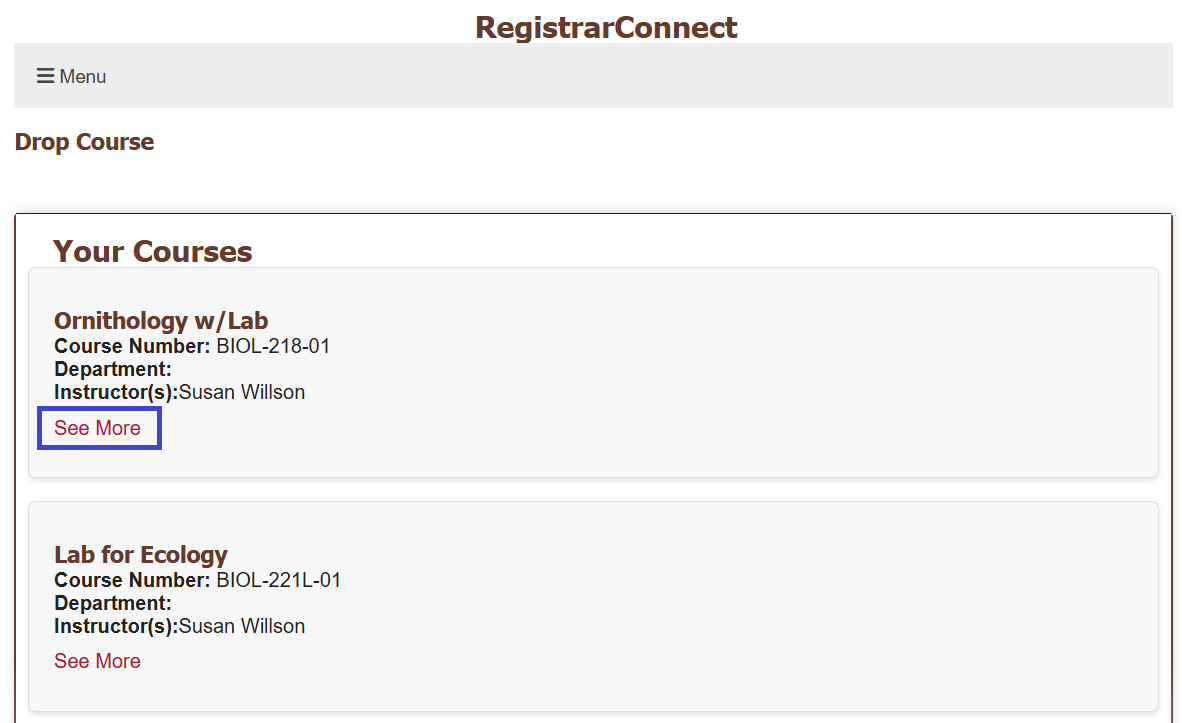
You will see a full list of your currently registered courses.
a. Please note course data in RegistrarConnect is delayed by up to 24 hours. This means that you will not see a newly registered course in this list for up to one day. APR2 will always have your up to date course schedule.
Click on the "See More" link at the bottom of the course section you wish to drop:
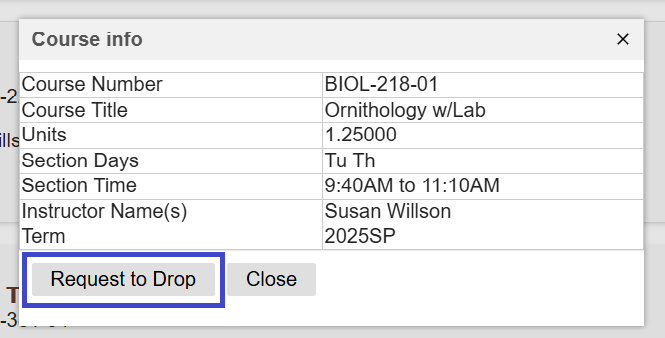
You will see a pop-up screen that displays the relevant information for that course section. Once you are sure this is the section you wish to add, click on the "Request to Drop" button:
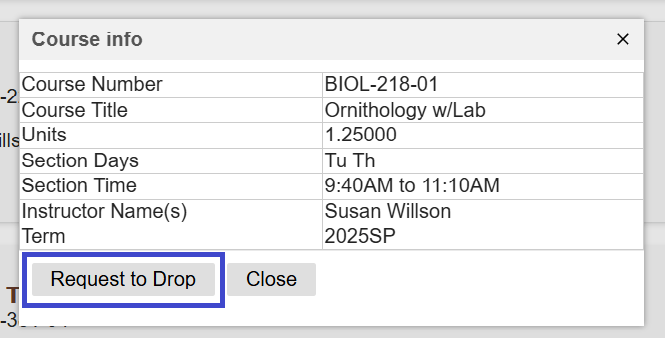
You will see a second pop-up that lists all of the instructors that are teaching this section. You need to choose one instructor to inform of your intent to withdraw. You DO NOT need this instructor's permission to withdraw from the course, this selection is used to give them a courtesy notification so they can update their class roster.
- Follow the rest of the instructions on the drop form and click the "Submit" button at the bottom of the page.
- Log into the RegistrarConnect Portal
Open the menu tab and click on the "Student Forms" link:
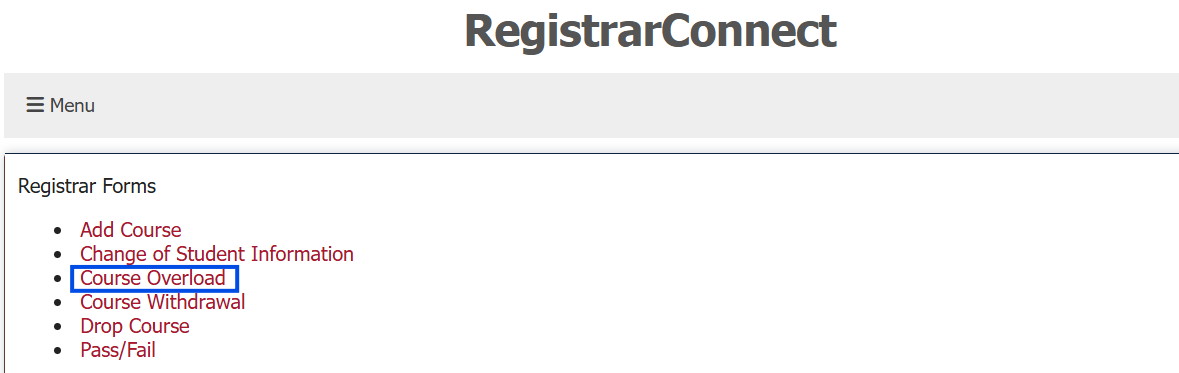
Click on the "Course Overload" link under the Registrar Forms heading:
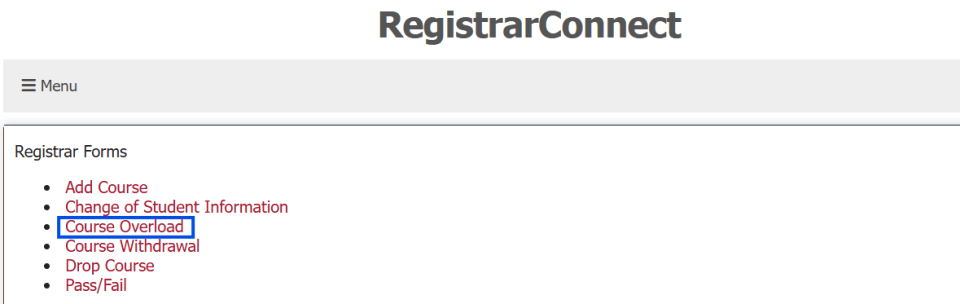
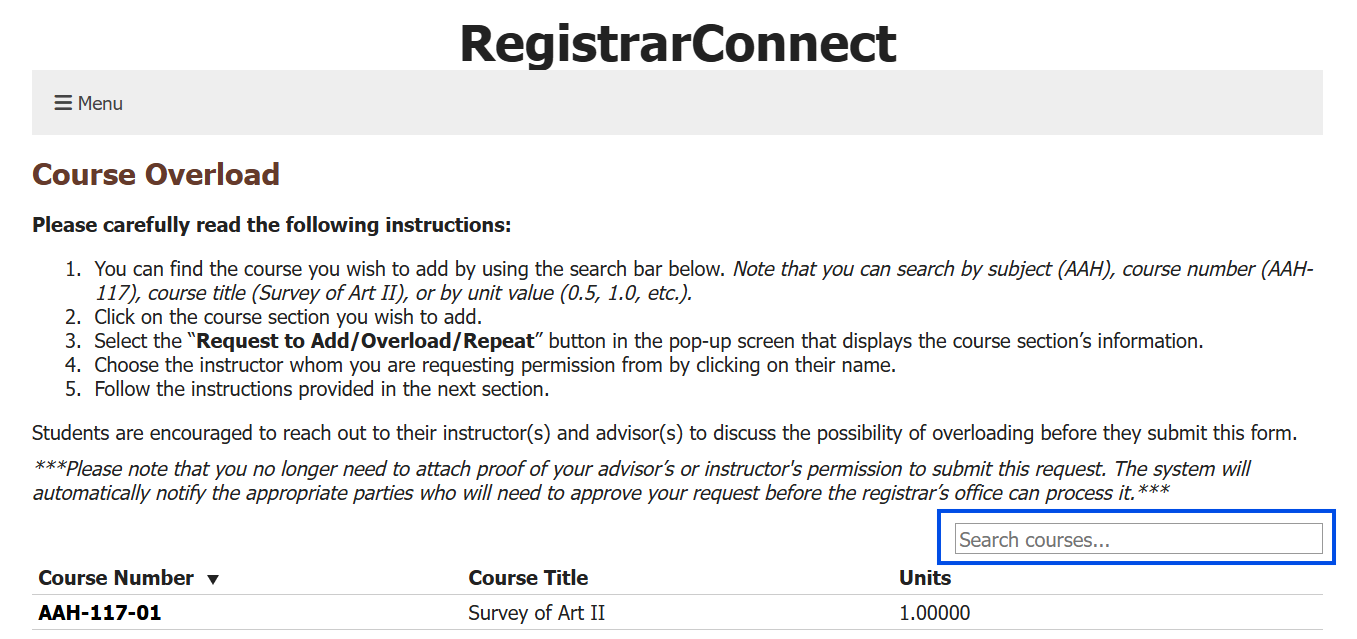
Use the search bar to find the course section you wish to add. You can search by subject (AAH), course number (AAH-117), course title (Survey of Art II), and unit value (0.5, 1.0, etc.).
a. Please note that you will only be able to add course sections that are active for the current registration term. If you cannot find the course you are looking for (such an independent study section) then you will need to reach out to the course instructor and ask them to submit the ticket with the Registrar's Office to get you registered in their section.
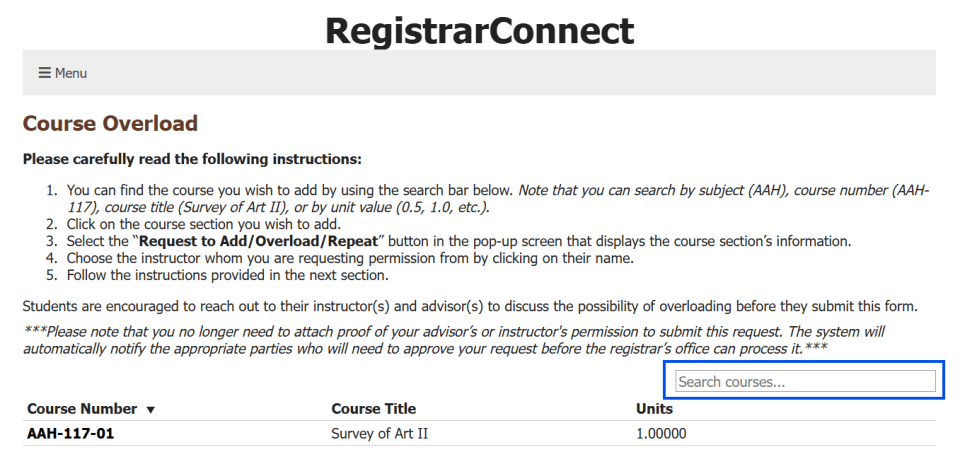
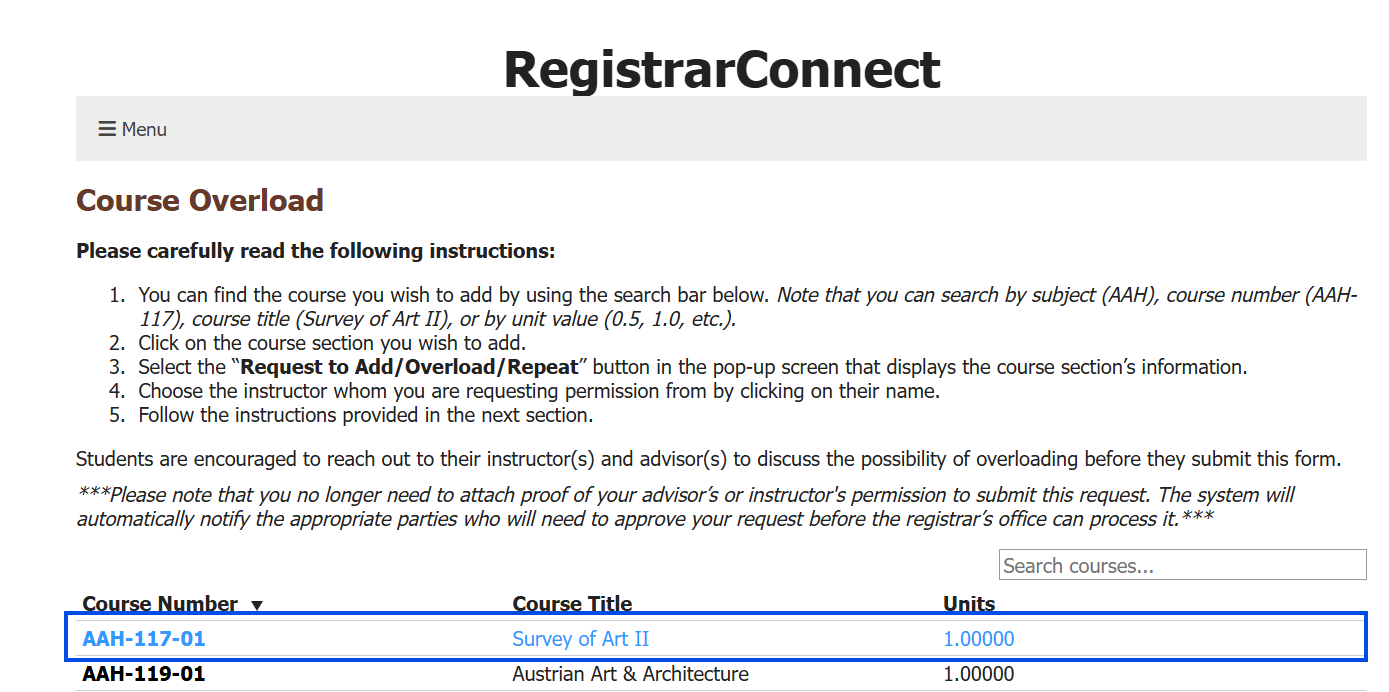
Click on the course section you wish to add:
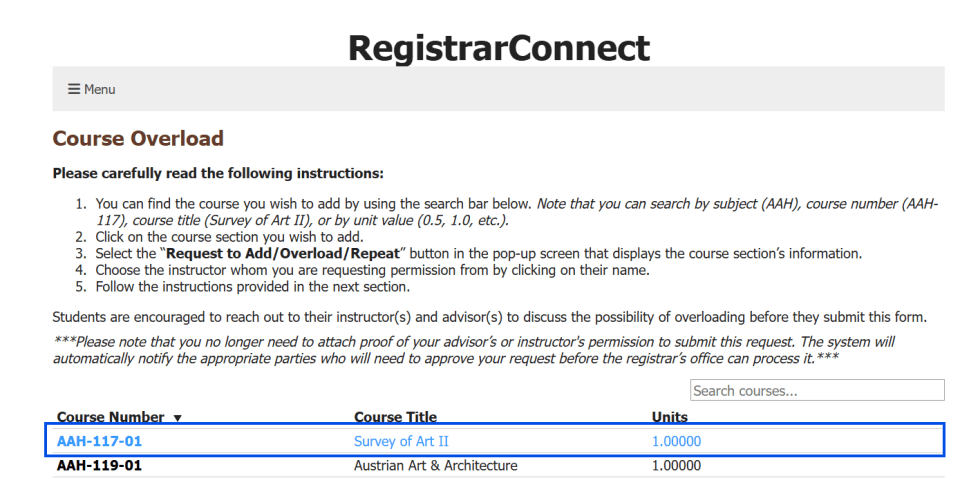
You will see a pop-up screen that displays the relevant information for that course section. Once you are sure this is the section you wish to add, click on the "Request to Add" button:
You will see a second pop-up that lists all of the instructors that are teaching this section. Choose which instructor you wish to ask permission from to add the course. If there is only one instructor listed on the section then you must click on that name to proceed.
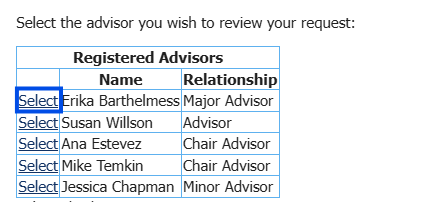
Once you choose an instructor you will be taken to the final section of the overload form. You will be asked to select the advisor you wish to review your request. Click on the "select" link next to the advisor's name you want to choose:
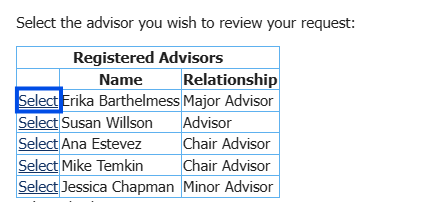
- Follow the rest of the instructions on the overload form and click the "Submit" button at the bottom of the page.
- Log into the RegistrarConnect Portal
Open the menu tab and click on the "Student Forms" link:
Click on the "Pass/Fail" link under the Registrar Forms heading:
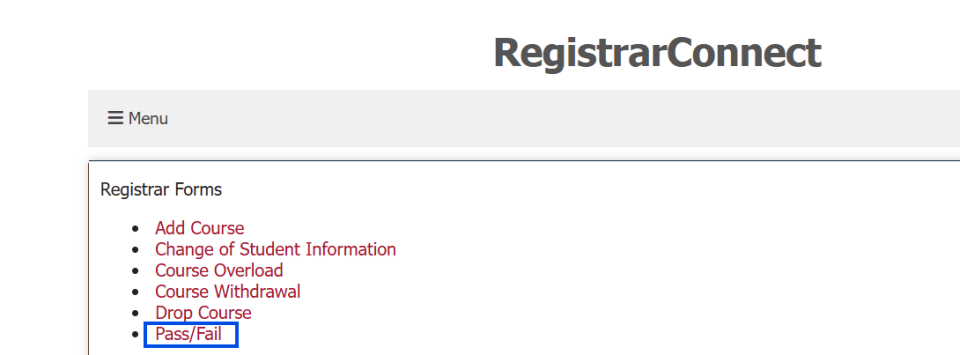
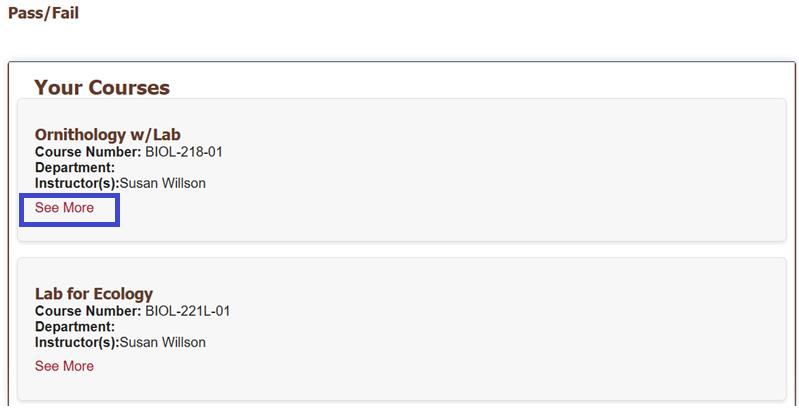
You will see a full list of your currently registered courses.
a. Please note course data in RegistrarConnect is delayed by up to 24 hours. This means that you will not see a newly registered course in this list for up to one day. APR2 will always have your up to date course schedule.
Click on the "See More" link at the bottom of the course section you wish to pass/fail:
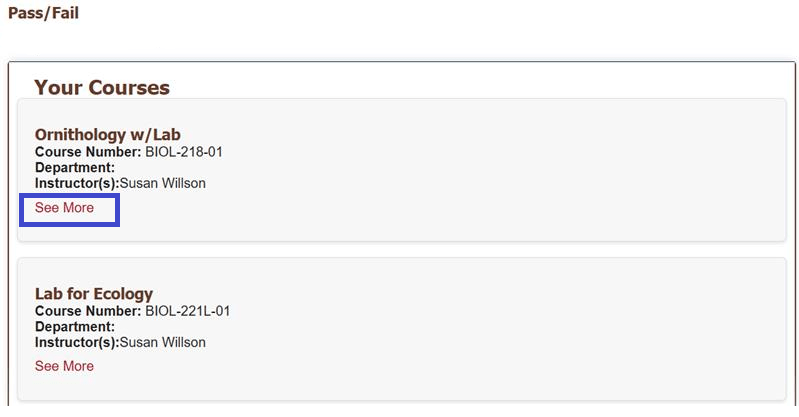
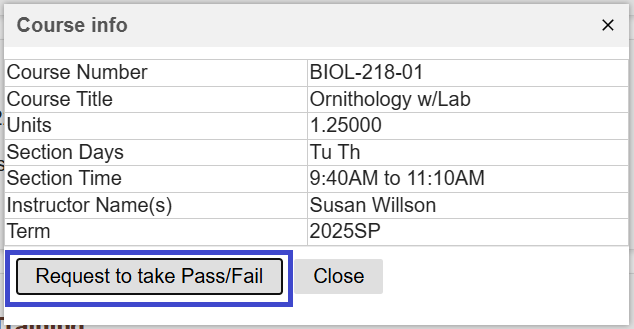
You will see a pop-up screen that displays the relevant information for that course section. Once you are sure this is the section you wish to add, click on the "Request to take Pass/Fail" button:
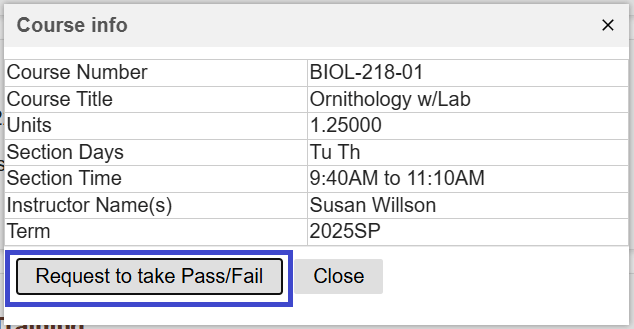
You will see a second pop-up that lists all of the instructors that are teaching this section. You need to choose one instructor to request permission from in order to pass/fail:
Once you choose an instructor you will be taken to the final section of the pass/fail form. You will be asked to select the advisor you wish to review your request. Click on the "select" link next to the advisor's name you want to choose. You do not need this advisor's permission to pass/fail this course. This selection is only used to notify them of your pass/fail request.
- Follow the rest of the instructions on the pass/fail form and click the "Submit" button at the bottom of the page.
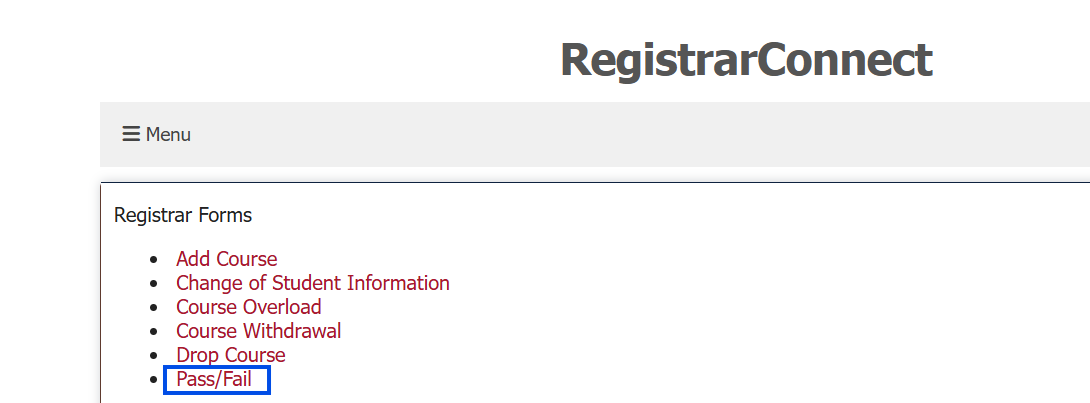
- Log into the RegistrarConnect Portal
Open the menu tab and click on the "Student Forms" link:
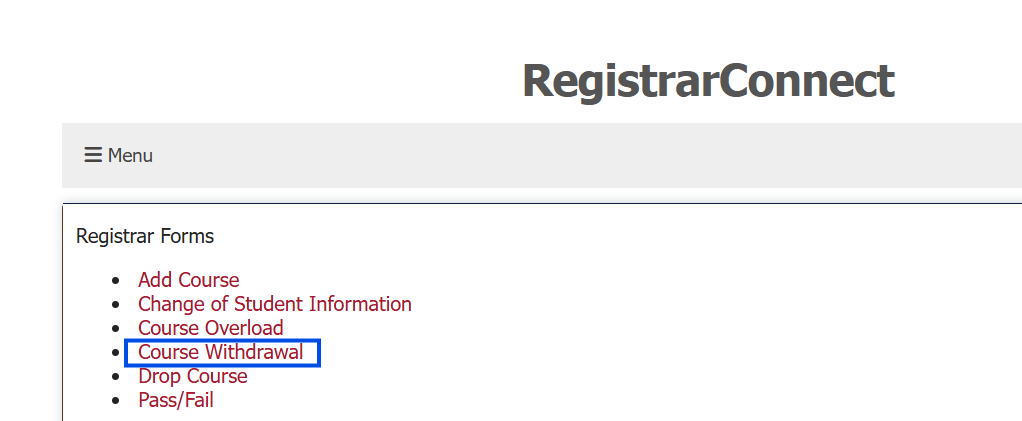
Click on the "Course Withdrawal" link under the Registrar Forms heading:
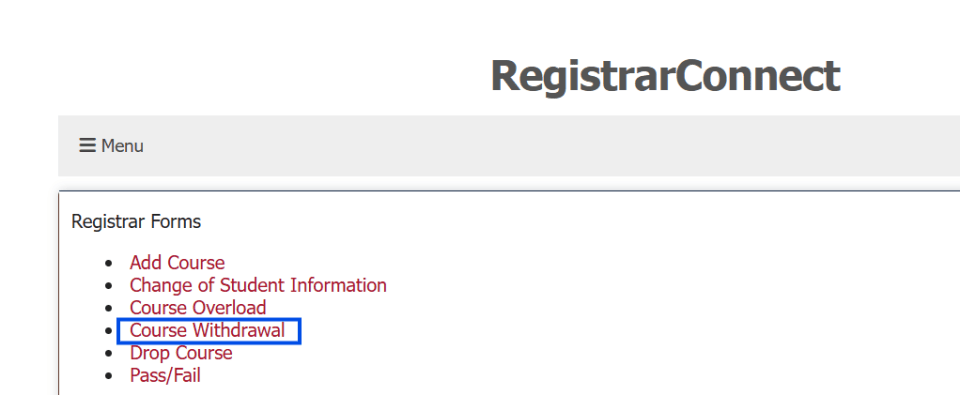
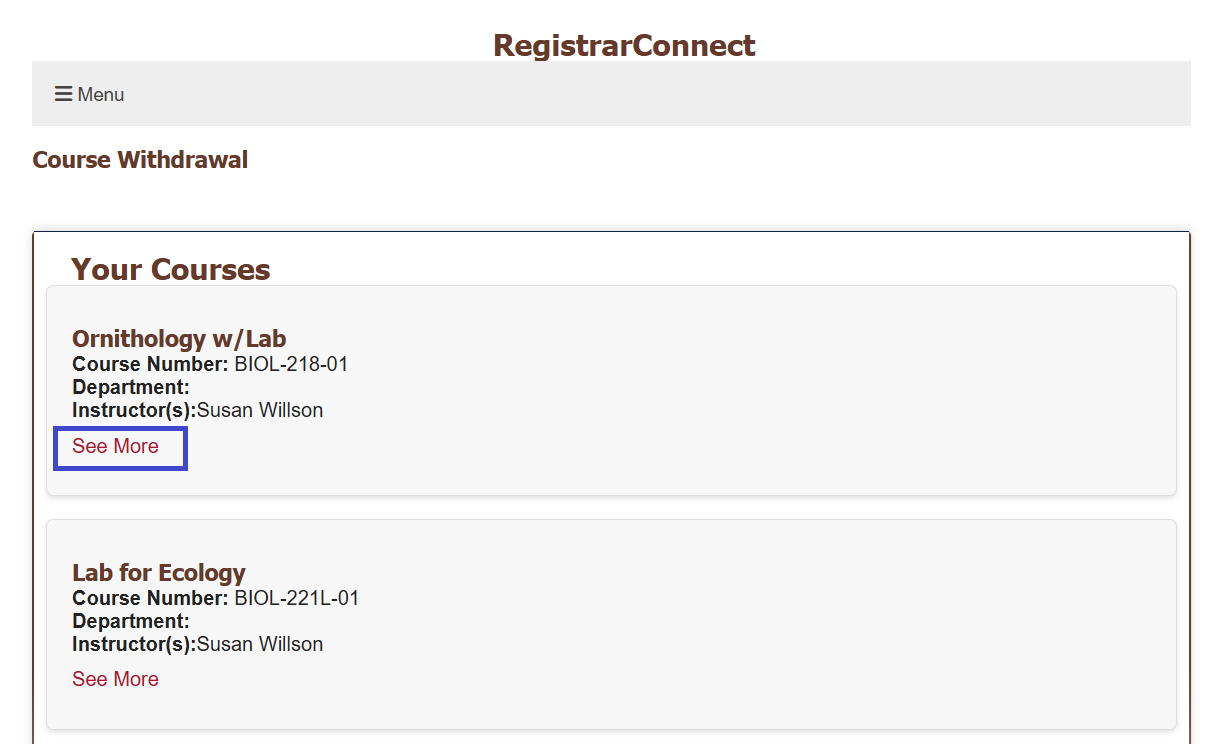
You will see a full list of your currently registered courses.
a. Please note course data in RegistrarConnect is delayed by up to 24 hours. This means that you will not see a newly registered course in this list for up to one day. APR2 will always have your up to date course schedule.
Click on the "See More" link at the bottom of the course section you wish to withdraw from:
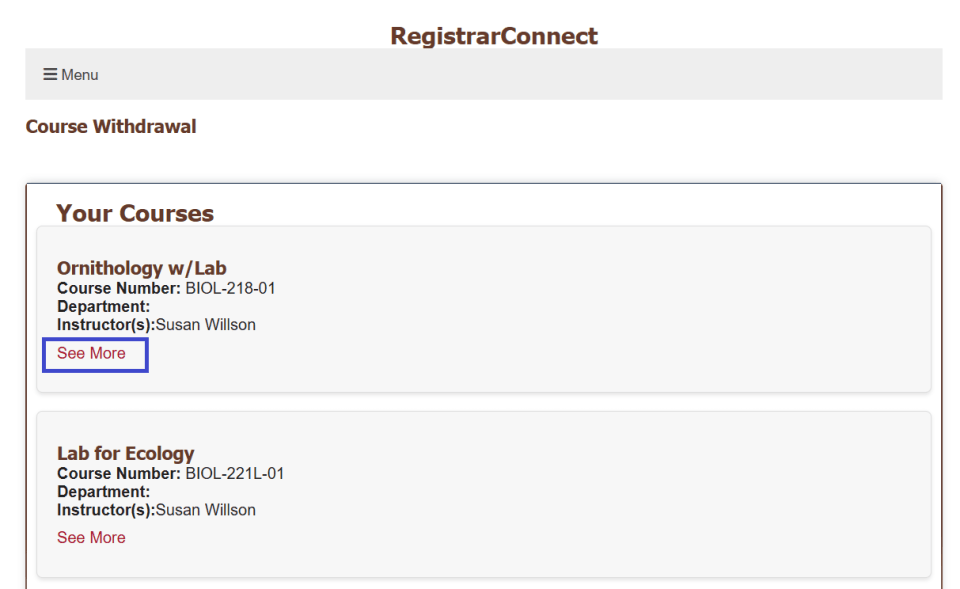
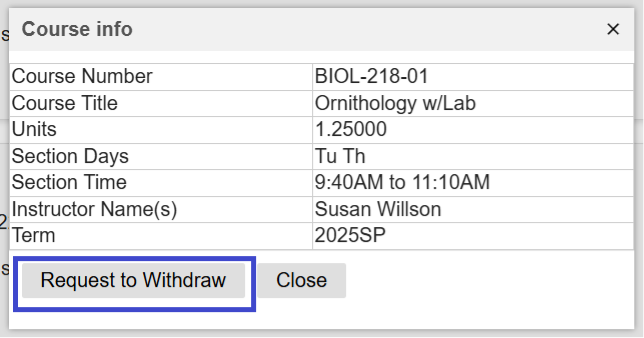
You will see a pop-up screen that displays the relevant information for that course section. Once you are sure this is the section you wish to add, click on the "Request to Withdraw" button:
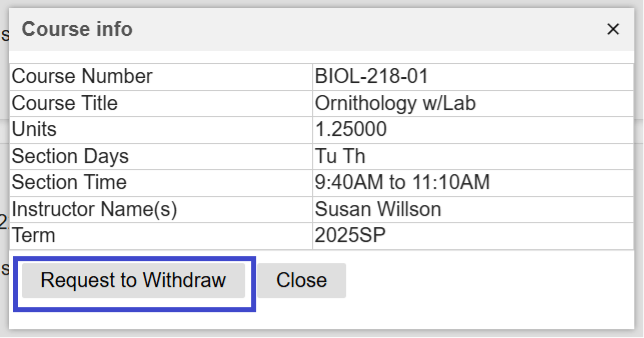
You will see a second pop-up that lists all of the instructors that are teaching this section. You need to choose one instructor to inform of your intent to withdraw. You DO NOT need this instructor's permission to withdraw from the course, this selection is used to give them a courtesy notification so they can update their class roster.
Once you choose an instructor you will be taken to the final section of the withdrawal form. You will be asked to select the advisor you wish to review your request. Click on the "select" link next to the advisor's name you want to choose. You do not need this advisor's permission to withdraw from this course. This selection is only used to notify them of your withdrawal so they can advise you about how to adjust your plans to accommodate the withdrawal.
- Follow the rest of the instructions on the withdrawal form and click the "Submit" button at the bottom of the page.
- Log into the RegistrarConnect Portal
Open the menu tab and click on the "Student Forms" link:
Click on the "Late Add" link under the Academic Petitions heading:
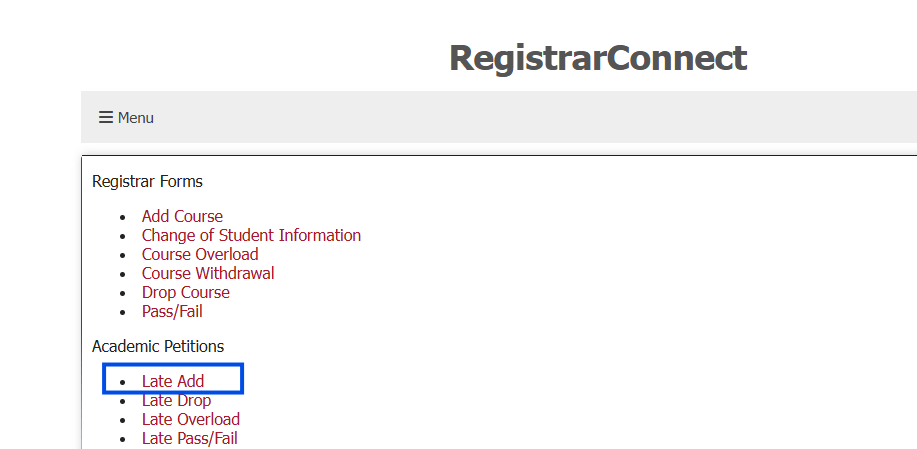
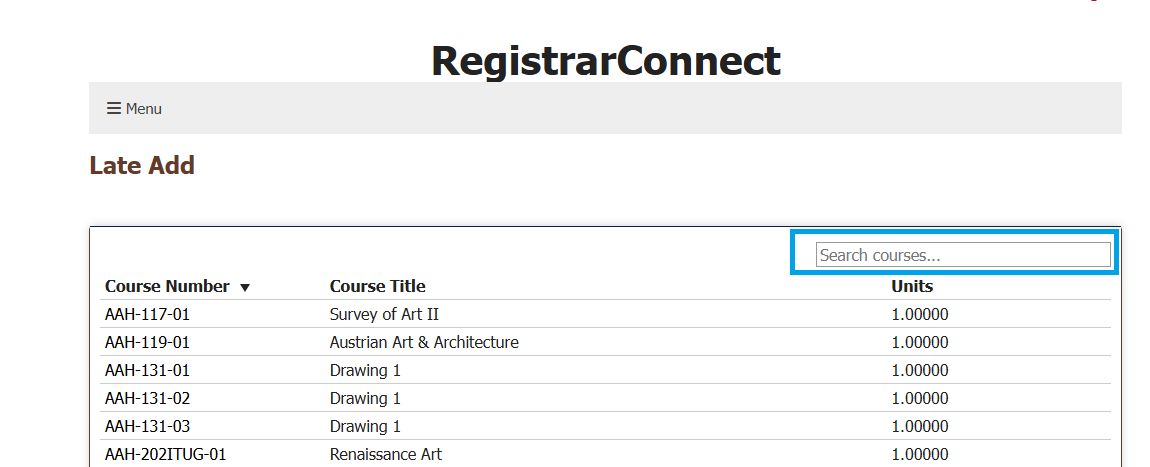
Use the search bar to find the course section you wish to add. You can search by subject (AAH), course number (AAH-117), course title (Survey of Art II), and unit value (0.5, 1.0, etc.).
a. Please note that you can only submit a Late Add course for courses that are offered in the current semester. Please see "How to Submit a Retroactive Petition" for information on how to late add courses from previous semesters.
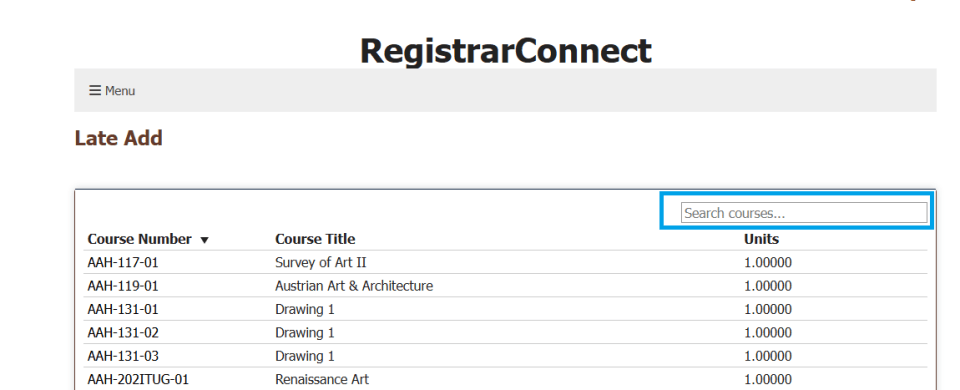
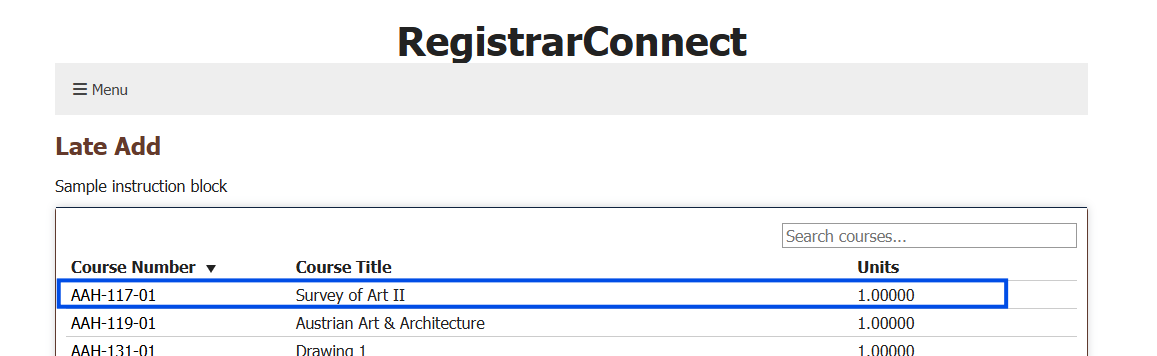
Click on the course section you wish to add:
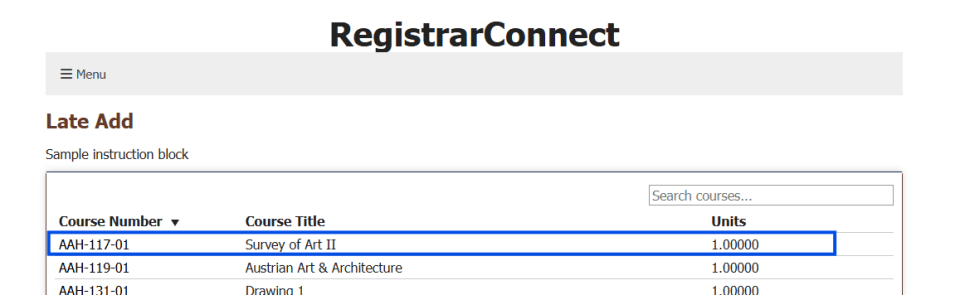
You will see a pop-up screen that displays the relevant information for that course section. Once you are sure this is the section you wish to add, click on the "Request to Add" button:
You will see a second pop-up that lists all of the instructors that are teaching this section. Choose which instructor you wish to ask permission from to add the course. If there is only one instructor listed on the section then you must click on that name to proceed.
Once you choose an instructor you will be taken to the final section of the late add form. You will be asked to select the advisor you wish to review your petition. Click on the "select" link next to the advisor's name you want to choose:
- Follow the rest of the instructions on the late add form and click the "Submit" button at the bottom of the page.
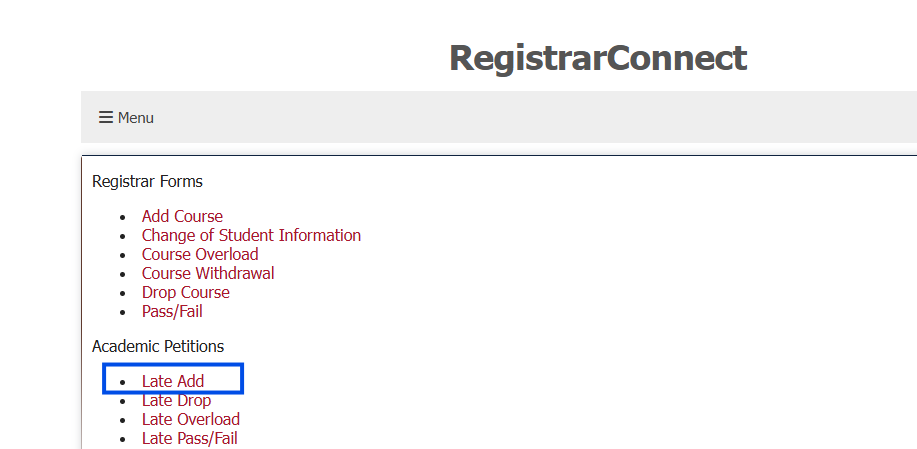
- Log into the RegistrarConnect Portal
Open the menu tab and click on the "Student Forms" link:
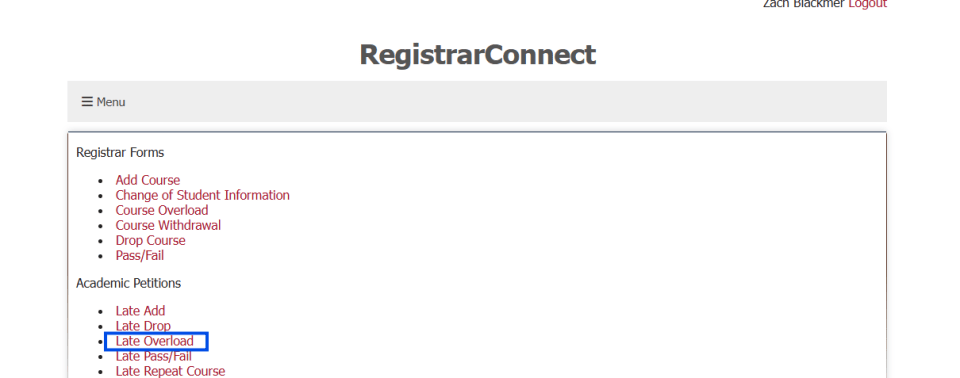
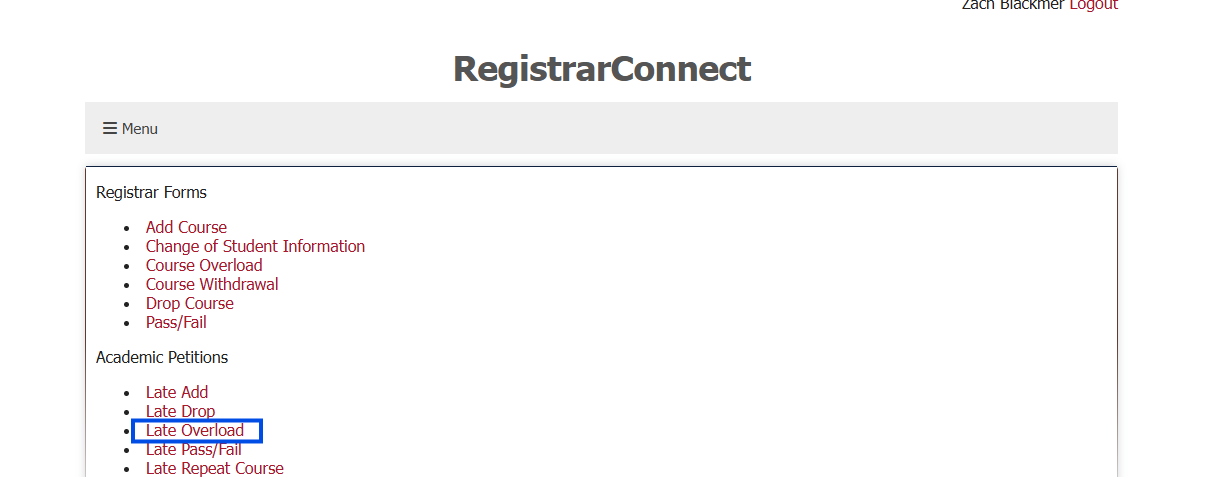
Click on the "Late Overload" link under the Academic Petitions heading:
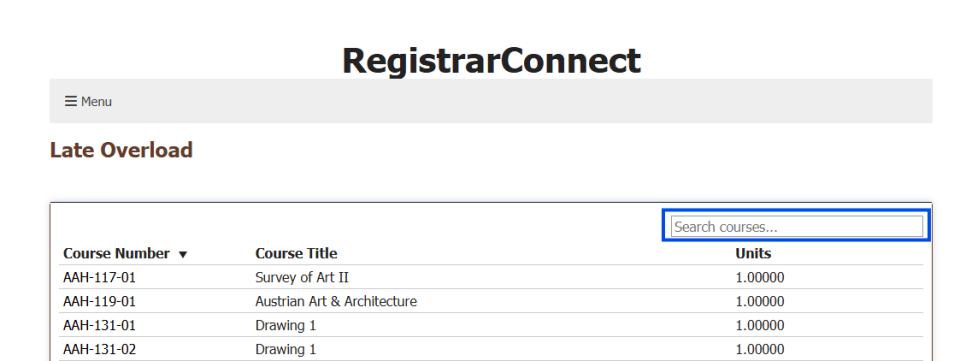
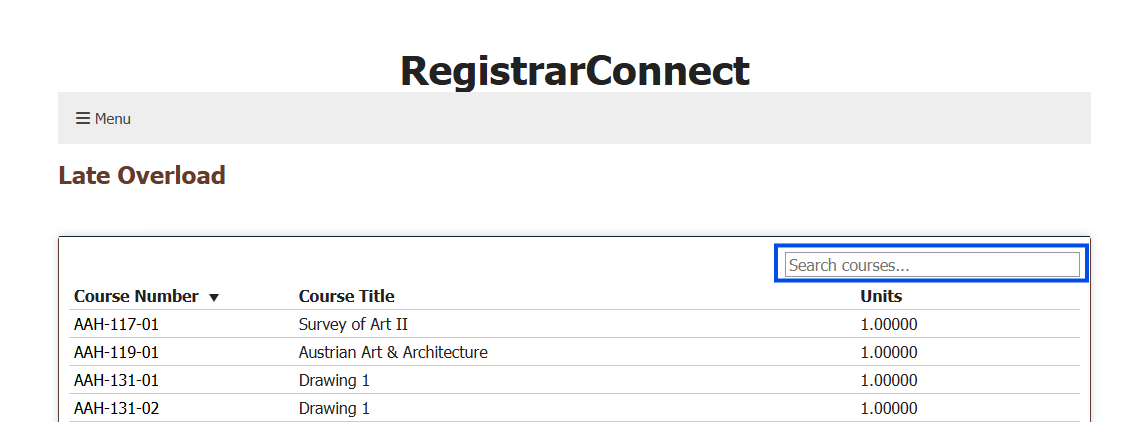
Use the search bar to find the course section you wish to add. You can search by subject (AAH), course number (AAH-117), course title (Survey of Art II), and unit value (0.5, 1.0, etc.).
a. Please note that you can only submit a Late Course Overload for courses that are offered in the current semester. Please see "How to Submit a Retroactive Petition" for information on how to late course overload from previous semesters.
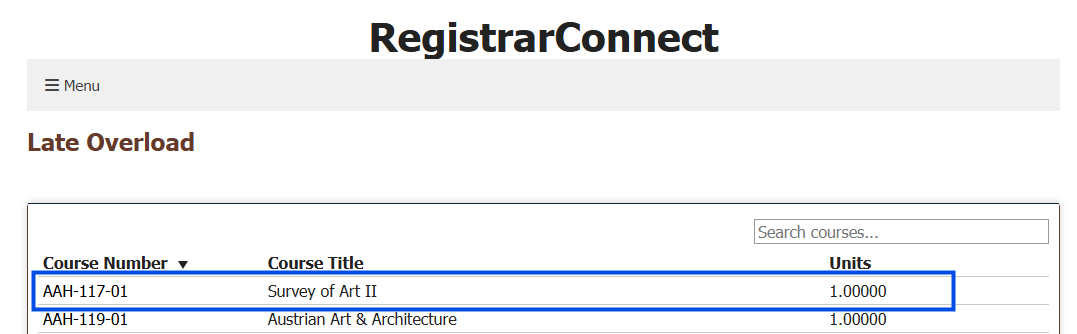
Click on the course section you wish to add:
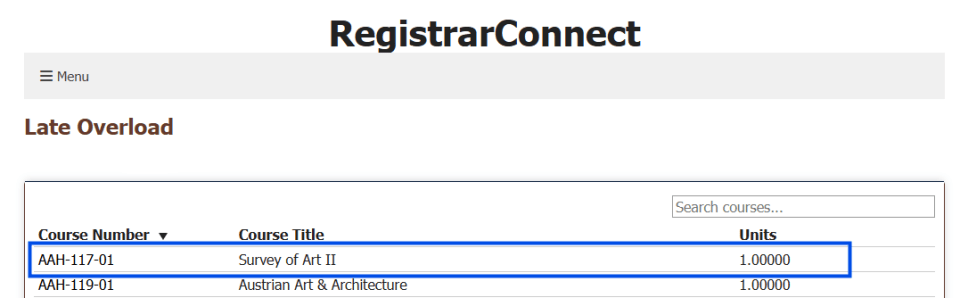
You will see a pop-up screen that displays the relevant information for that course section. Once you are sure this is the section you wish to add, click on the "Request to Add" button:
You will see a second pop-up that lists all of the instructors that are teaching this section. Choose which instructor you wish to ask permission from to add the course. If there is only one instructor listed on the section then you must click on that name to proceed.
Once you choose an instructor you will be taken to the final section of the late overload form. You will be asked to select the advisor you wish to review your petition. Click on the "select" link next to the advisor's name you want to choose:
- Follow the rest of the instructions on the late overlaod form and click the "Submit" button at the bottom of the page.
- Log into the RegistrarConnect Portal
Open the menu tab and click on the "Student Forms" link:
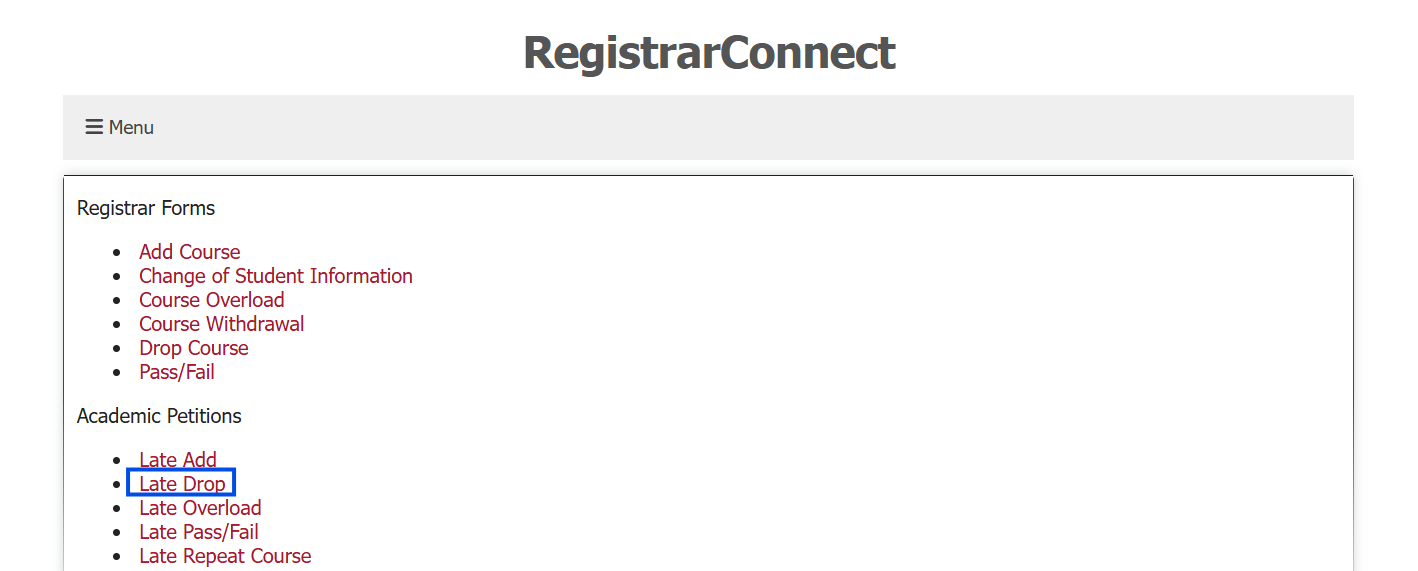
Click on the "Late Drop" link under the Registrar Forms heading:
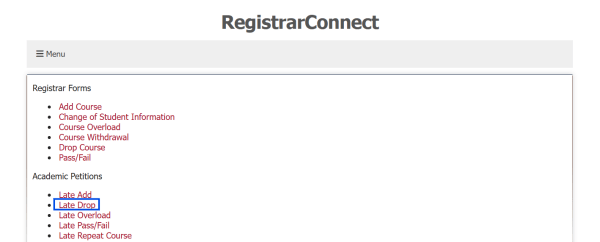
You will see a full list of your currently registered courses.
a. Please note course data in RegistrarConnect is delayed by up to 24 hours. This means that you will not see a newly registered course in this list for up to one day. APR2 will always have your up to date course schedule.
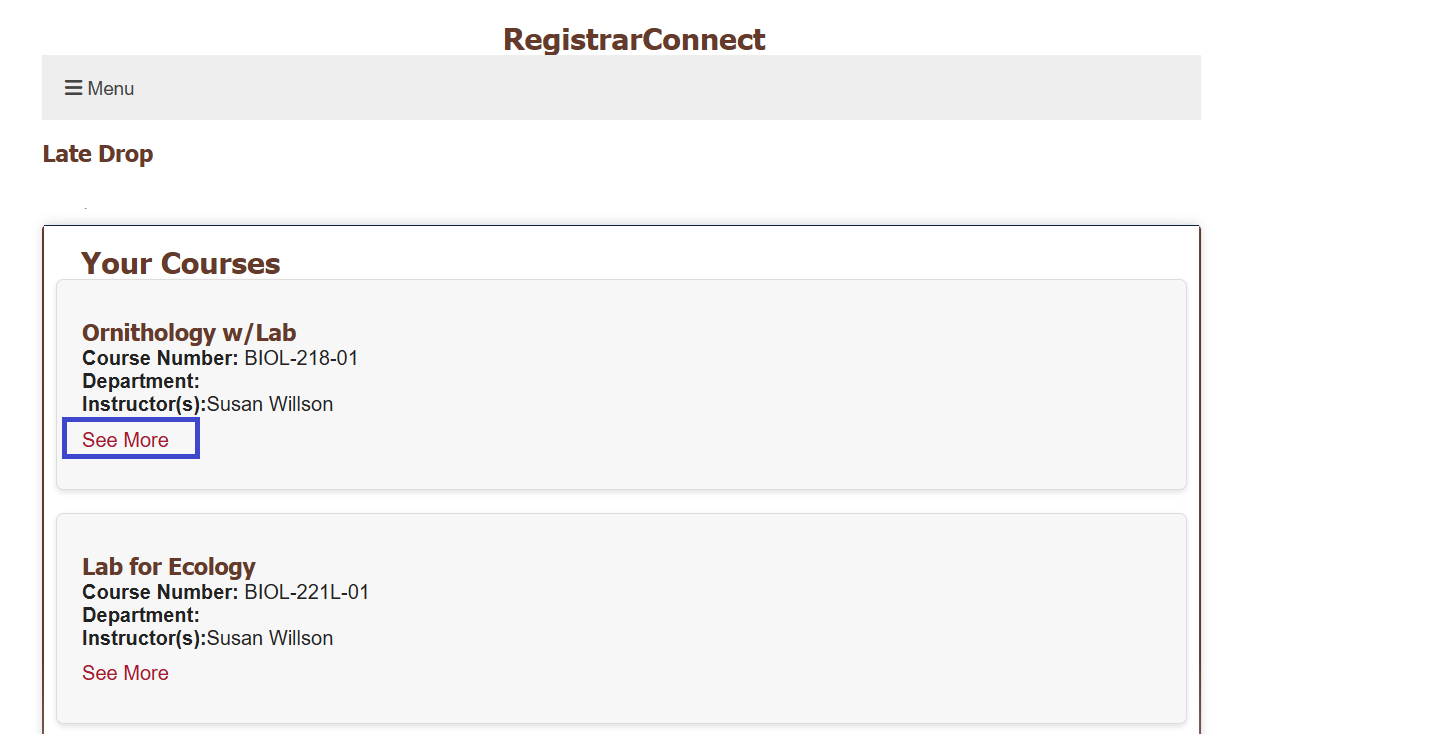
Click on the "See More" link at the bottom of the course section you wish to drop:
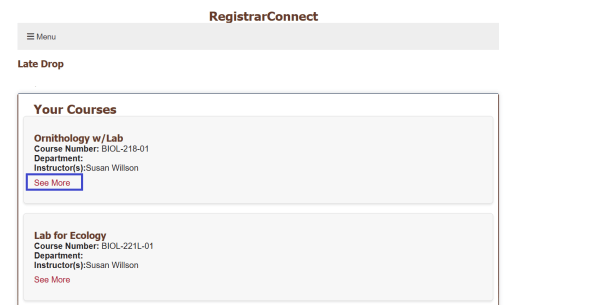
You will see a pop-up screen that displays the relevant information for that course section. Once you are sure this is the section you wish to add, click on the "Request to Drop" button:
You will see a second pop-up that lists all of the instructors that are teaching this section. You need to choose one instructor to inform of your intent to withdraw. You DO NOT need this instructor's permission to late drop from the course, this selection is used to give them a courtesy notification so they can update their class roster.
Once you choose an instructor you will be taken to the final section of the late drop form. You will be asked to select the advisor you wish to review and approve your petition. Click on the "select" link next to the advisor's name you want to choose.
- Follow the rest of the instructions on the late drop form and click the "Submit" button at the bottom of the page.
- Log into the RegistrarConnect Portal
Open the menu tab and click on the "Student Forms" link:
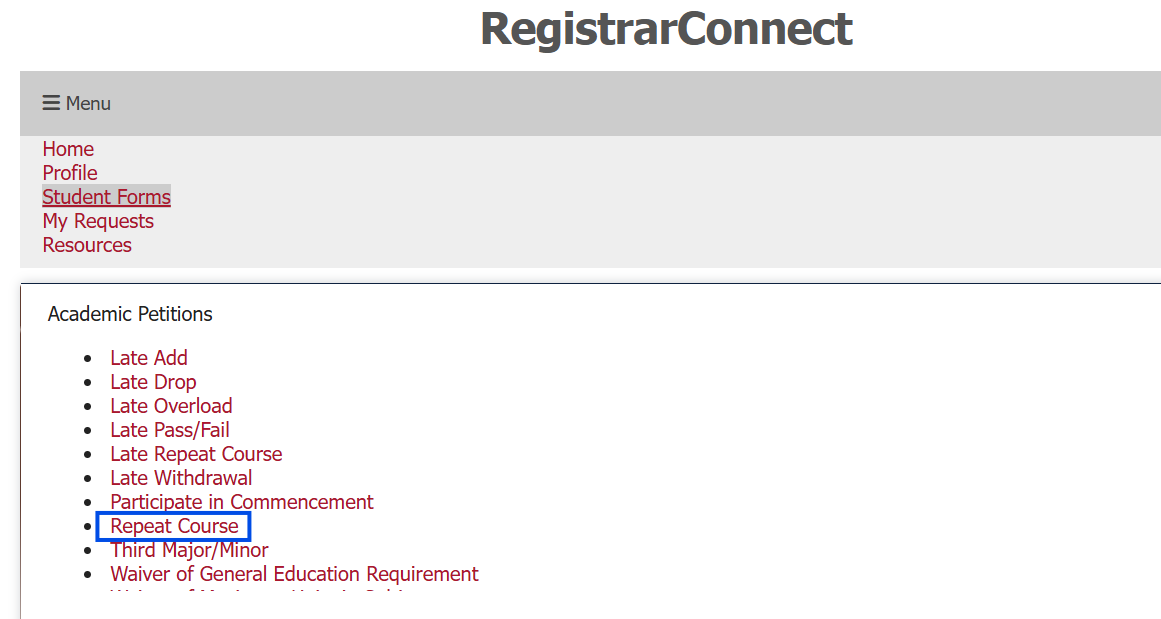
Click on the "Repeat Course" link under the Academic Petitions heading:
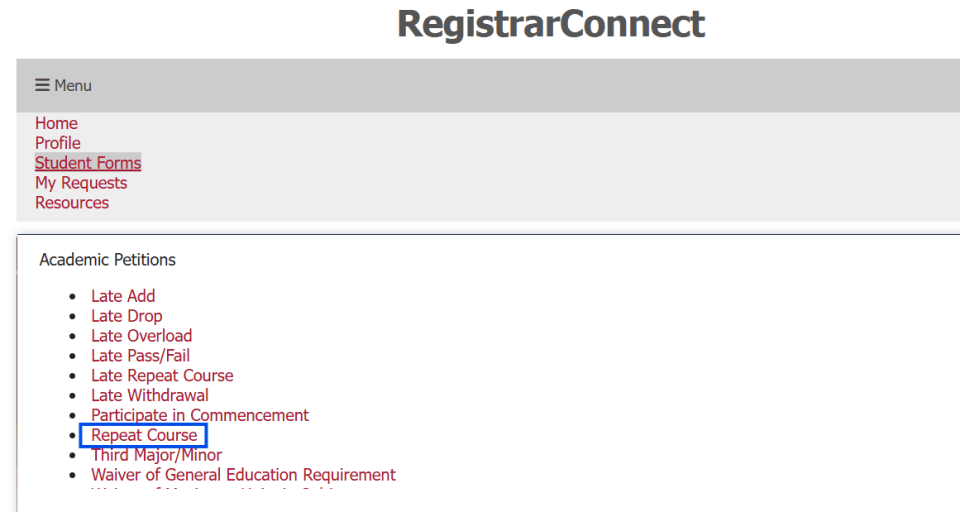
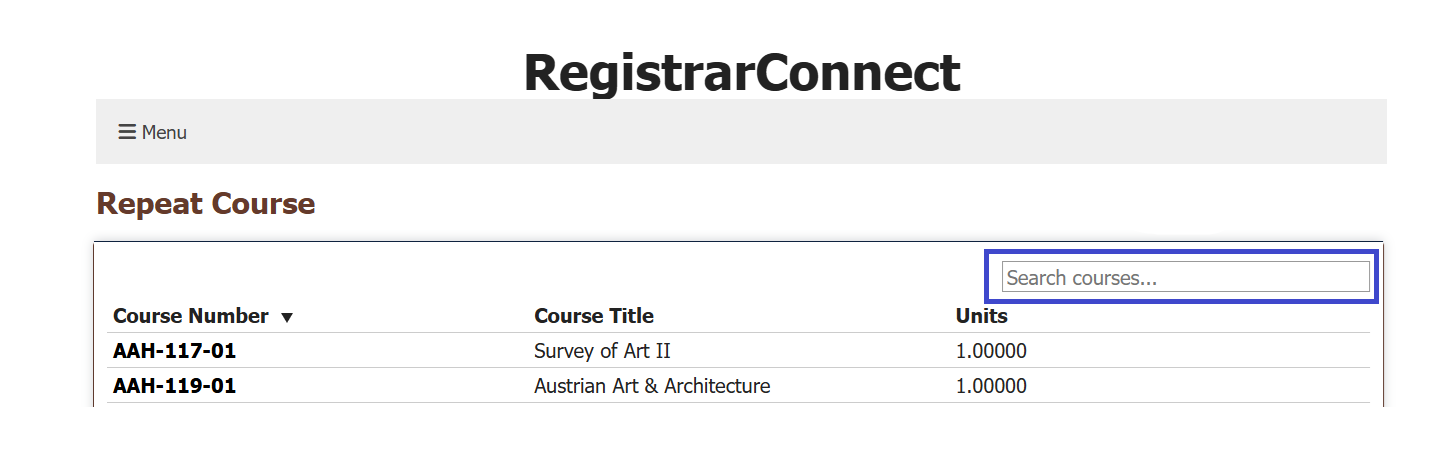
Use the search bar to find the course section you wish to add. You can search by subject (AAH), course number (AAH-117), course title (Survey of Art II), and unit value (0.5, 1.0, etc.).
a. Please note that you can only submit a Repeat Course for courses that are offered in current registration period.
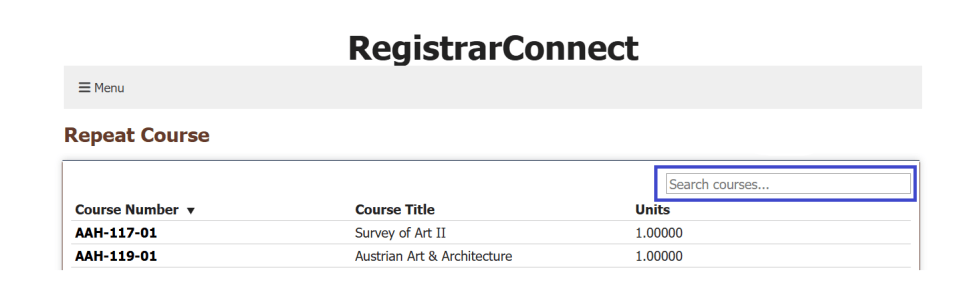
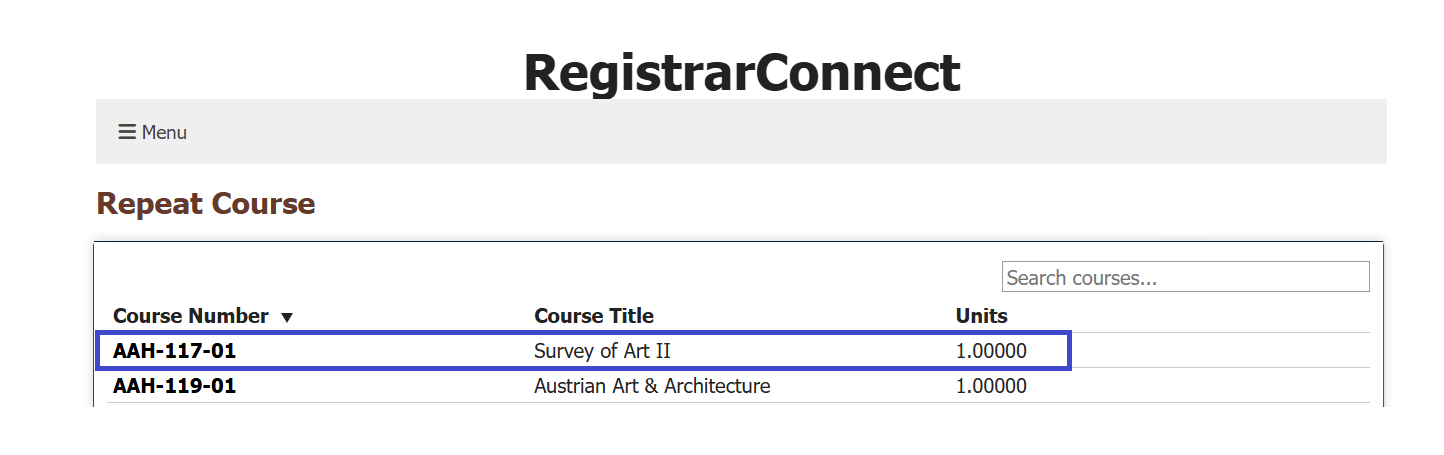
Click on the course section you wish to add:
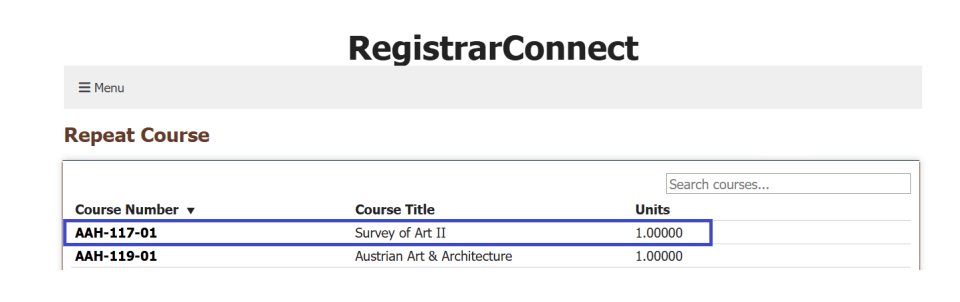
You will see a pop-up screen that displays the relevant information for that course section. Once you are sure this is the section you wish to add, click on the "Request to Add" button:
You will see a second pop-up that lists all of the instructors that are teaching this section. Choose which instructor you wish to ask permission from to add the course. If there is only one instructor listed on the section then you must click on that name to proceed.
Once you choose an instructor you will be taken to the final section of the repeat form. You will be asked to select the advisor you wish to review your petition. Click on the "select" link next to the advisor's name you want to choose:
- Follow the rest of the instructions on the repeat form and click the "Submit" button at the bottom of the page.
- Log into the RegistrarConnect Portal
Open the menu tab and click on the "Student Forms" link:
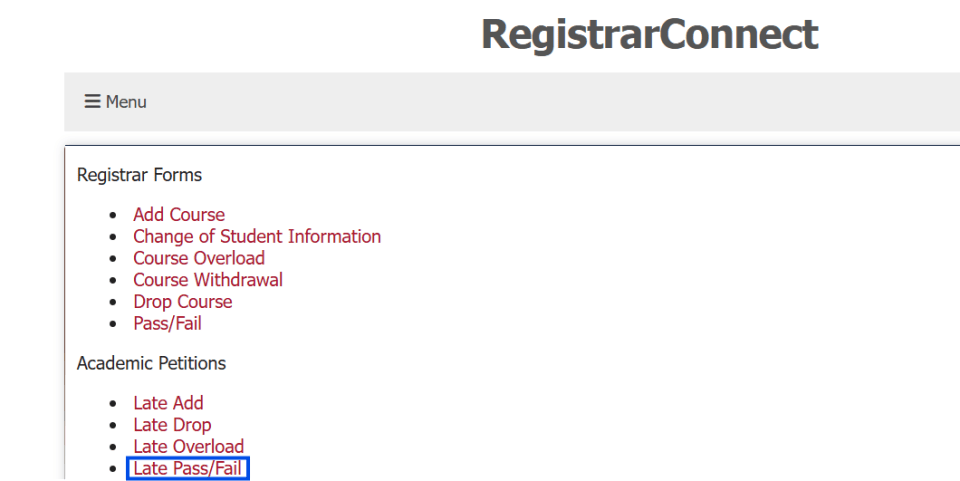
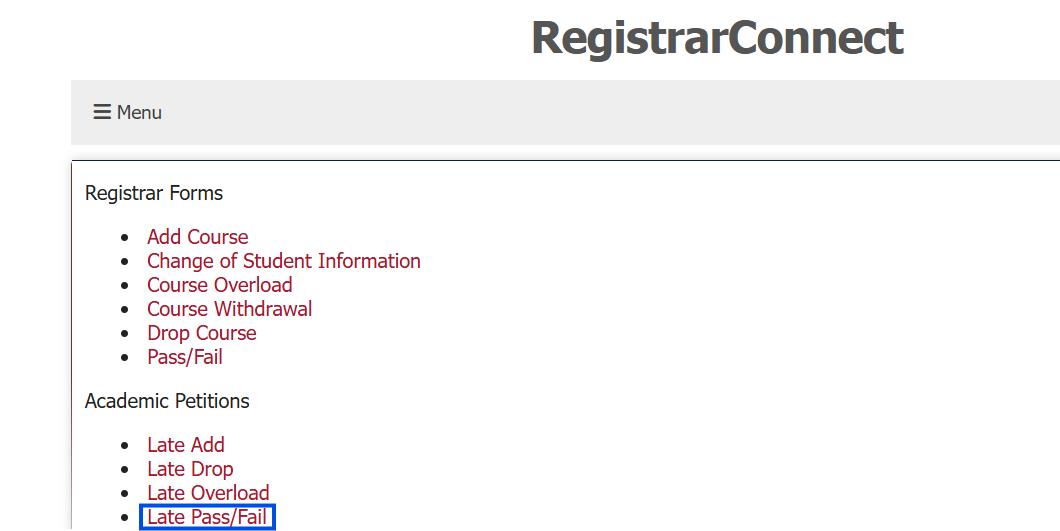
Click on the "Late Pass/Fail" link under the Academic Petitions heading:
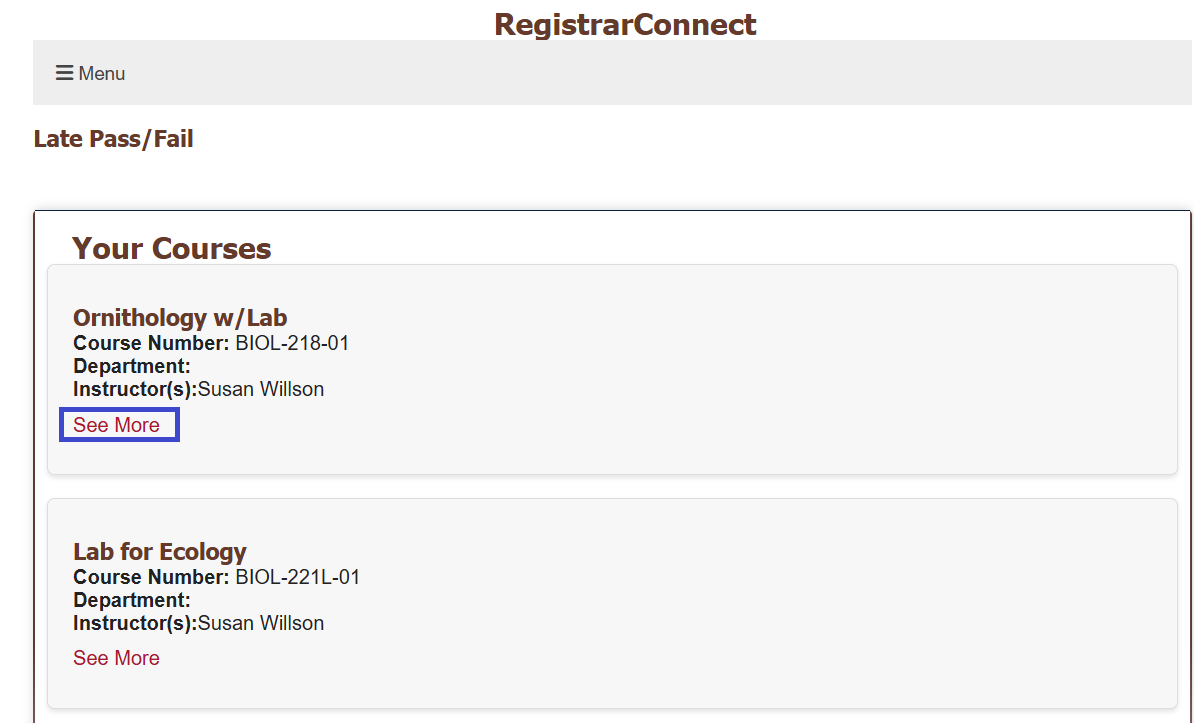
You will see a full list of your currently registered courses.
a. Please note course data in RegistrarConnect is delayed by up to 24 hours. This means that you will not see a newly registered course in this list for up to one day. APR2 will always have your up to date course schedule.
Click on the "See More" link at the bottom of the course section you wish to pass/fail:
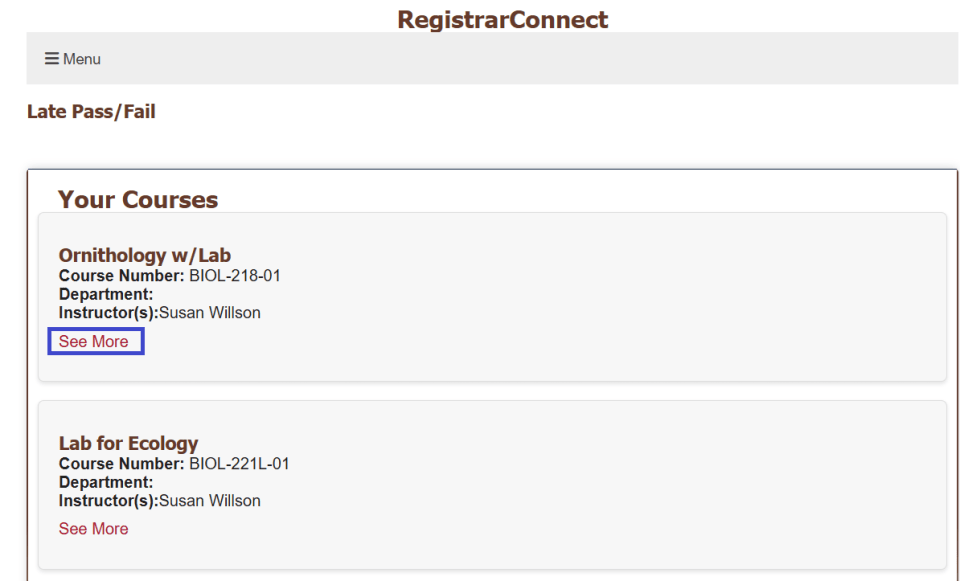
You will see a pop-up screen that displays the relevant information for that course section. Once you are sure this is the section you wish to add, click on the "Request to take Pass/Fail" button:
You will see a second pop-up that lists all of the instructors that are teaching this section. You need to choose one instructor to request permission from in order to pass/fail:
Once you choose an instructor you will be taken to the final section of the late pass/fail form. You will be asked to select the advisor you wish to review and approved your petition. Click on the "select" link next to the advisor's name you want to choose.
- Follow the rest of the instructions on the late pass/fail form and click the "Submit" button at the bottom of the page.
- Log into the RegistrarConnect Portal
Open the menu tab and click on the "Student Forms" link:
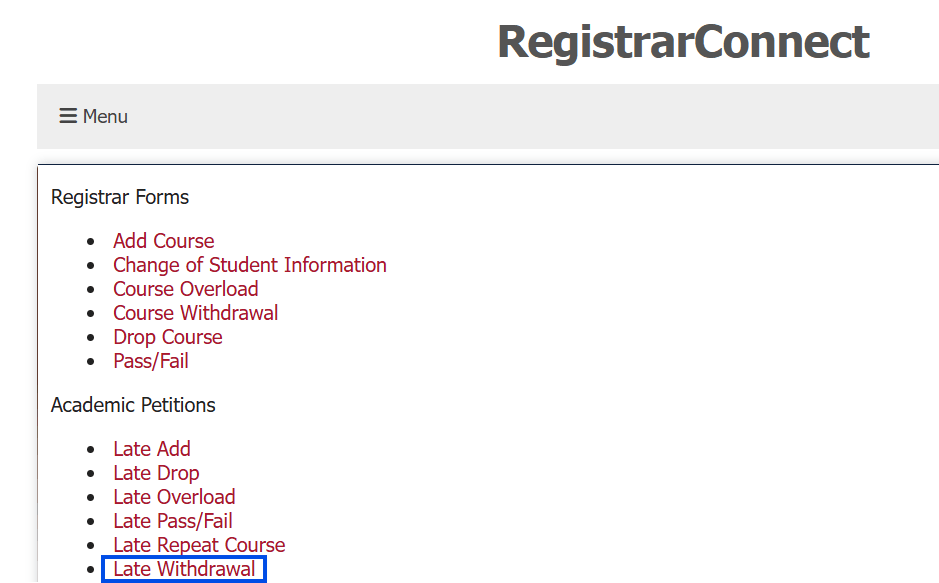
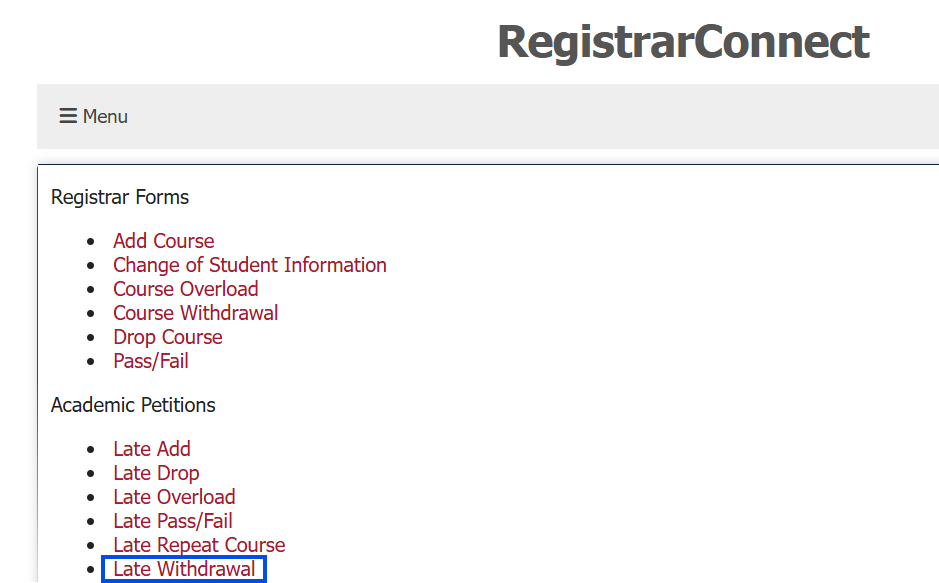
Click on the "Late Withdrawal" link under the Registrar Forms heading:
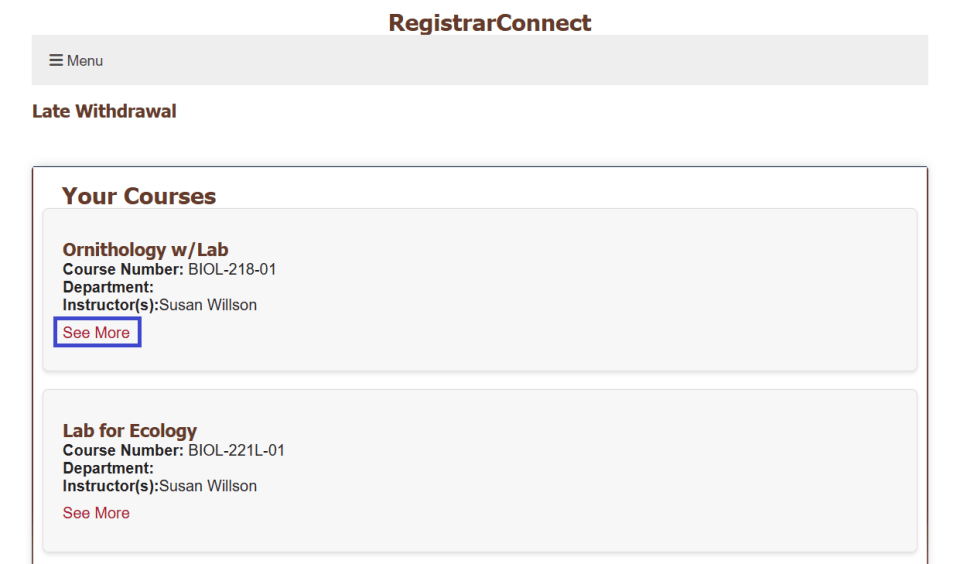
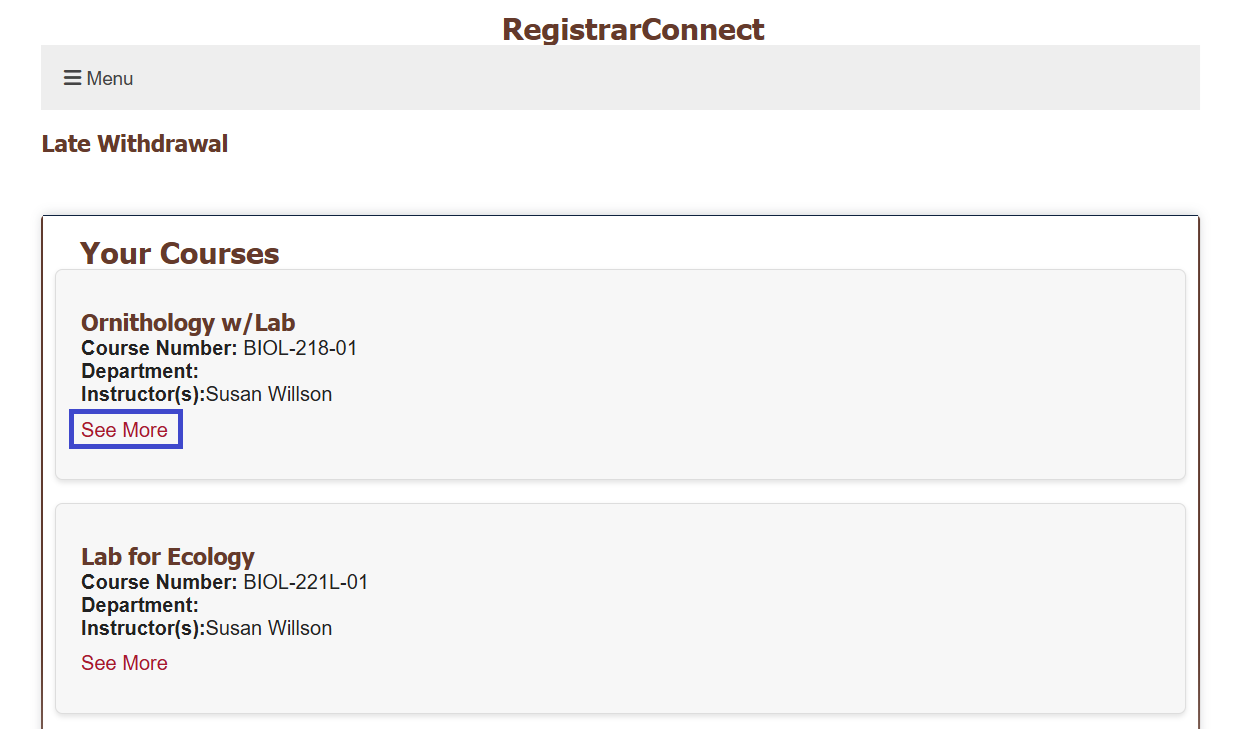
You will see a full list of your currently registered courses.
a. Please note course data in RegistrarConnect is delayed by up to 24 hours. This means that you will not see a newly registered course in this list for up to one day. APR2 will always have your up to date course schedule.
Click on the "See More" link at the bottom of the course section you wish to withdraw from:
You will see a pop-up screen that displays the relevant information for that course section. Once you are sure this is the section you wish to add, click on the "Request to Withdraw" button:
You will see a second pop-up that lists all of the instructors that are teaching this section. You need to choose one instructor to inform of your intent to withdraw. You DO NOT need this instructor's permission to withdraw from the course, this selection is used to give them a courtesy notification so they can update their class roster.
Once you choose an instructor you will be taken to the final section of the late withdrawal form. You will be asked to select the advisor you wish to review and approve your petition. Click on the "select" link next to the advisor's name you want to choose.
- Follow the rest of the instructions on the late withdrawal form and click the "Submit" button at the bottom of the page.
- Log into the RegistrarConnect Portal
Open the menu tab and click on the "Student Forms" link:
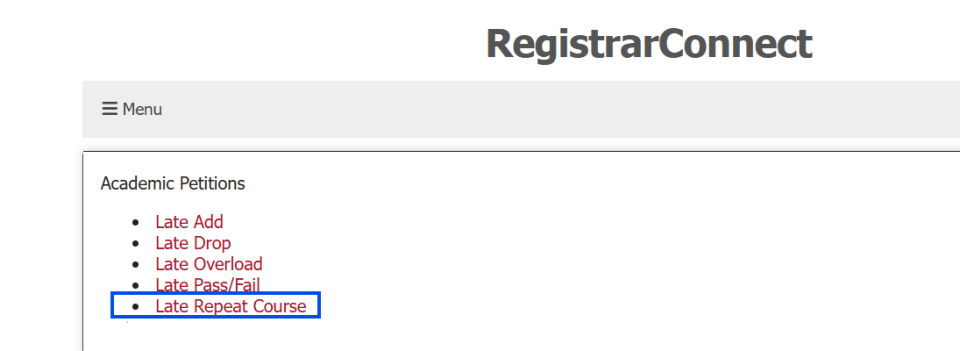
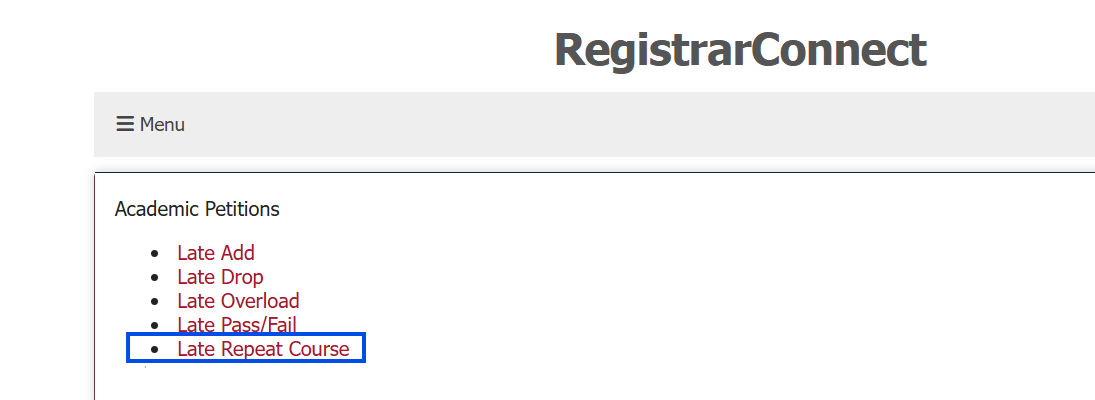
Click on the "Late Repeat Course" link under the Academic Petitions heading:
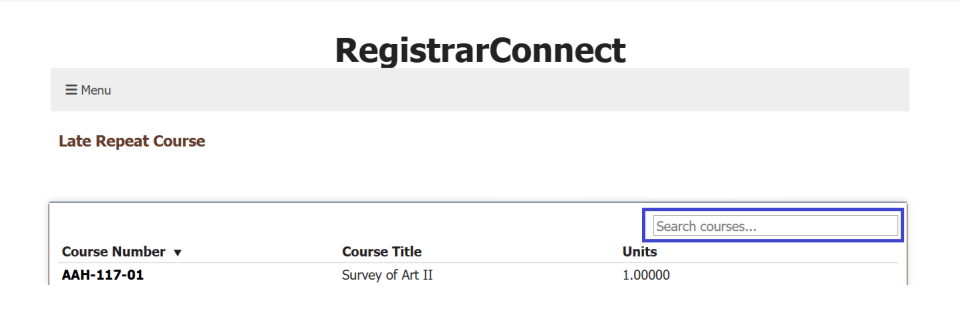
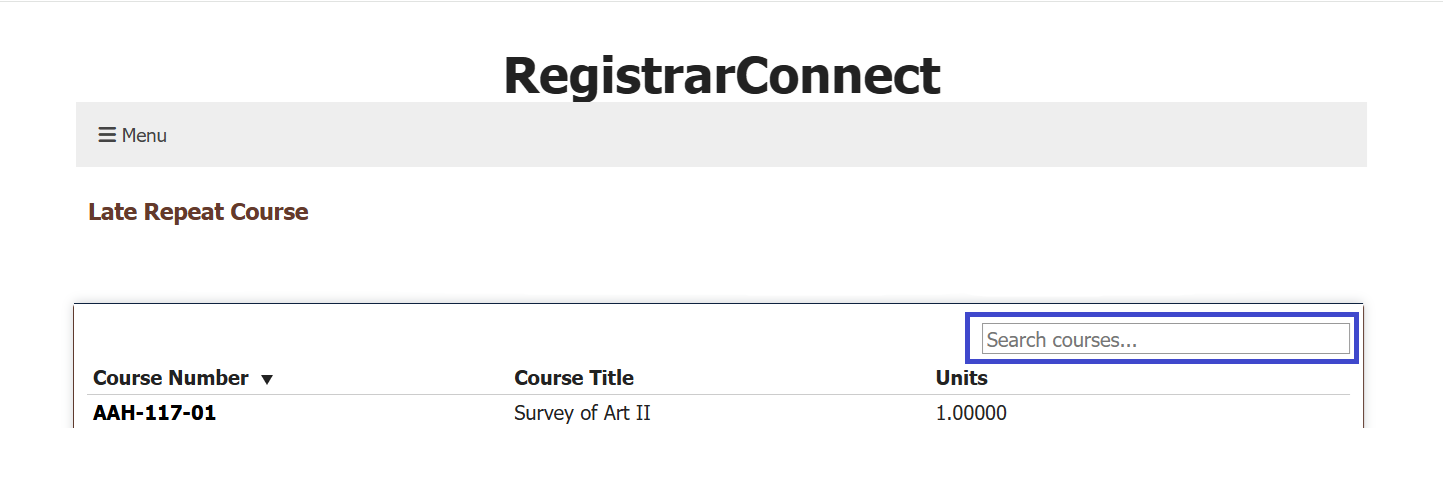
Use the search bar to find the course section you wish to add. You can search by subject (AAH), course number (AAH-117), course title (Survey of Art II), and unit value (0.5, 1.0, etc.).
a. Please note that you can only submit a Late Repeat Course for courses that are offered in the current semester. Submit a Repeat Course petition to repeat a course in the currest registration period. Please see "How to Submit a Retroactive Petition" for information on how to late add courses from previous semesters.
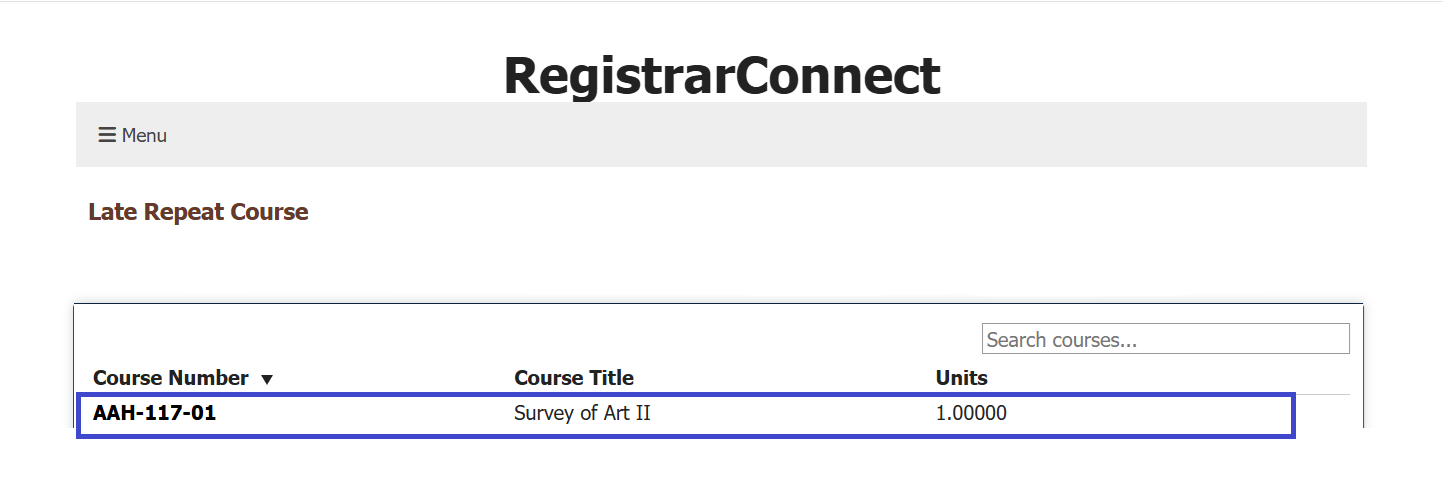
Click on the course section you wish to add:
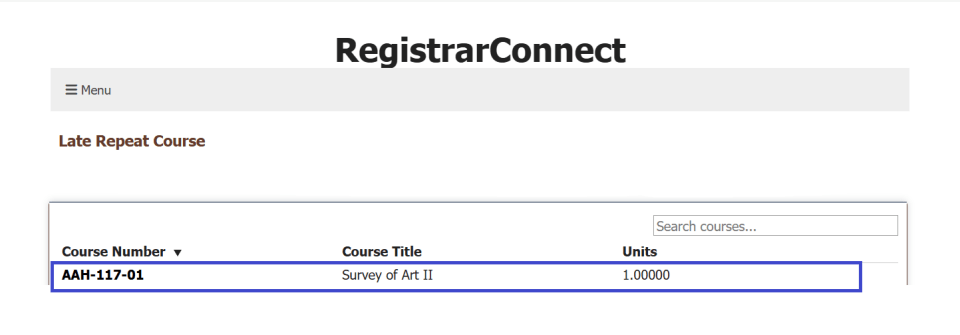
You will see a pop-up screen that displays the relevant information for that course section. Once you are sure this is the section you wish to add, click on the "Request to Add" button:
You will see a second pop-up that lists all of the instructors that are teaching this section. Choose which instructor you wish to ask permission from to add the course. If there is only one instructor listed on the section then you must click on that name to proceed.
Once you choose an instructor you will be taken to the final section of the late repeat form. You will be asked to select the advisor you wish to review your petition. Click on the "select" link next to the advisor's name you want to choose:
- Follow the rest of the instructions on the late repeat form and click the "Submit" button at the bottom of the page.
RegistrarConnect course selections will only allow you to request an add, overload, or repeat for the current registration term. If you cannot find the section you want to add on the selection screen, then the section is not currently active for the current registration term. Follow the steps below to trouble shoot this issue.
- Make sure that you have the correct course section number.
- Double check that you are using the correct form. Add Course, Course Overload, and Repeat Course will only show courses for the current registration period. Late Add, Late Overload, Late Repeat will only show courses for the current academic term. Please see the chart below for a more thorough explanation:
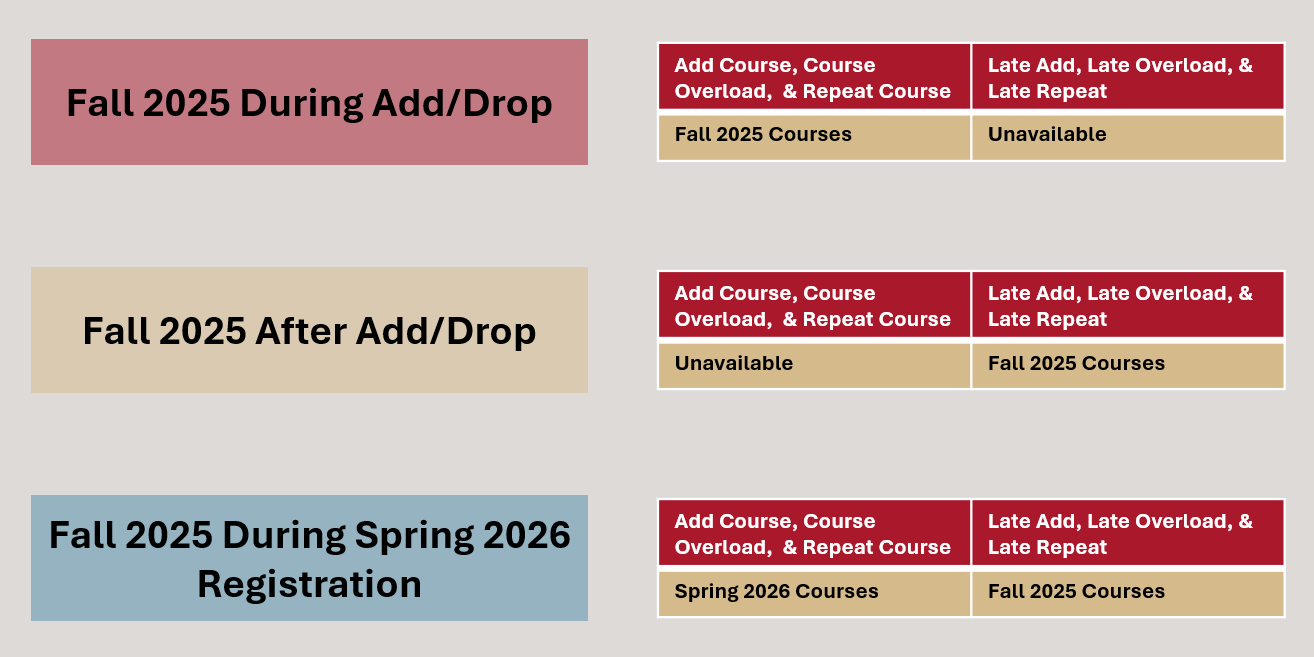
- If you still cannot find the course section you are trying to add (especially if it is an independent study section), then you need to contact the course instructor and ask them to submit a registration by course ticket to create the section and add you to it.
- Log into the RegistrarConnect Portal
Open the menu tab and click on the "Student Forms" link:
Click on the petition type you wish to use:
- Third Major/Minor - Petition to add a third major or minor (open to SR's only)
- Participate in Commencement - Petition to walk during commencement ceremonies if you need to complete more than 2 units to graduate.
- Waiver of General Education Requirement - Petition to waive Distribution, Diversity, Environmental Learning, and Quantitative & Logical Reasoning requirements.
- Waiver of Max Units in a Subject - Petition to take more than 14 units in one subject area.
- Other Petition (Located Under "Other Forms") - Petition to be used if NO other pre-existing petition suites your needs.
- Retroactive Petition (Located Under "Other Forms") - Petition to complete retroactive course registration, overload, withdrawals, repeats, and pass/fail grading. (Only to be use in exceptional circumstances)
Follow the rest of the instructions on the late repeat form and click the "Submit" button at the bottom of the page.