How to move your St. Lawrence University emails from Outlook to Gmail manually
Please note these steps only work using a Windows computer and the Outlook Desktop App. If you are using “New Outlook” you will need to revert to legacy Outlook first.
- Open the Outlook app on your computer and make sure you are signed into your St. Lawrence University email account.
- Export your Outlook emails to a .pst file and save it on your hard drive.
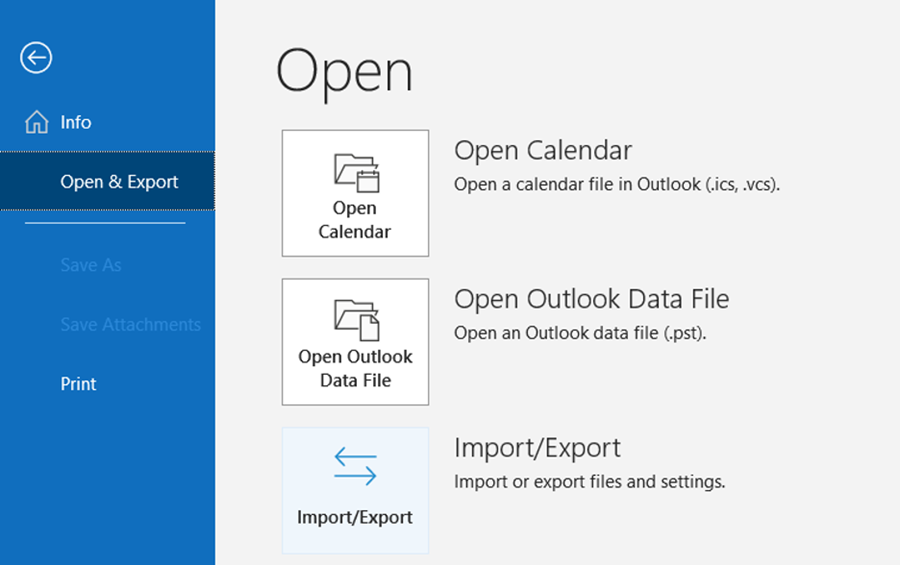
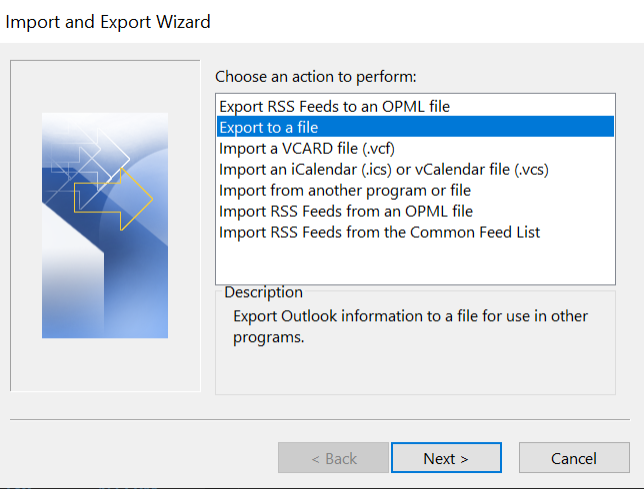
- Go to File > Open & Export > Import/Export > Export to a file.
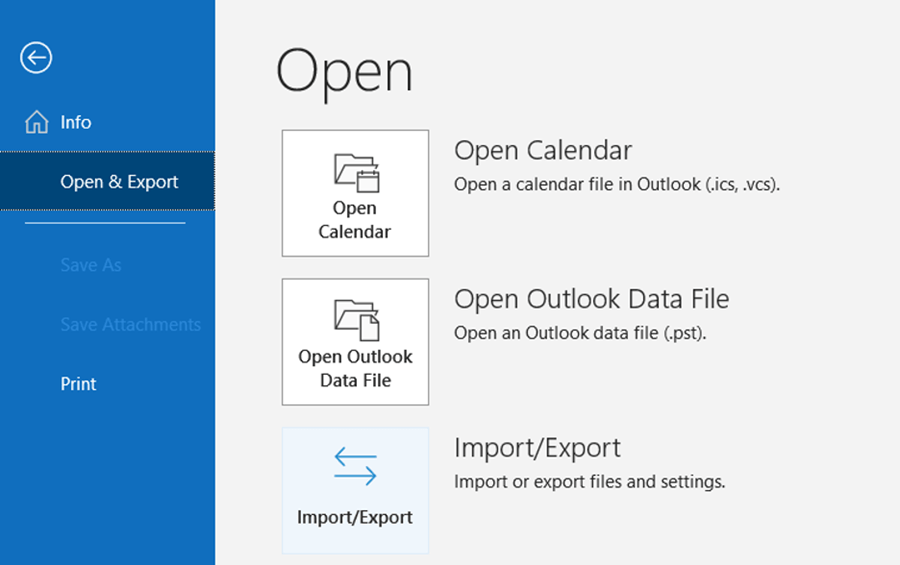
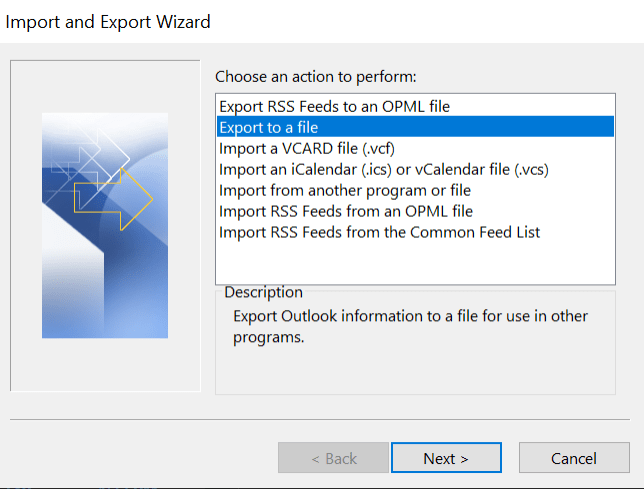
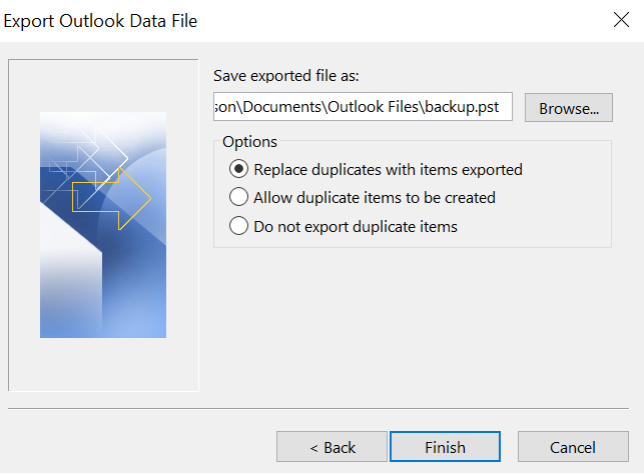
- Save the file.

- Please make a note of where you save your Outlook Data File (see below). You can click “Browse” to change the location.
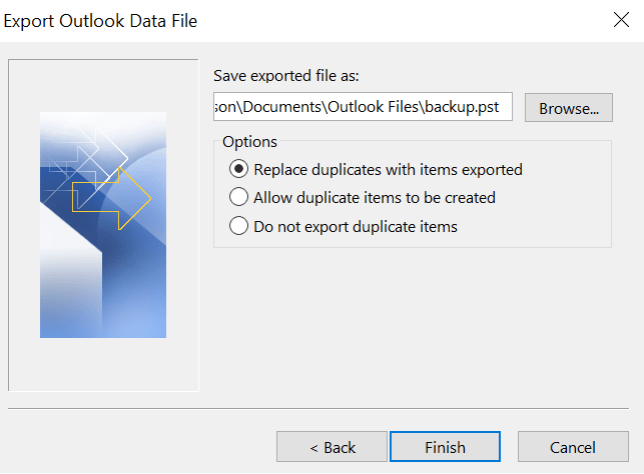
- Go to File > Open & Export > Import/Export > Export to a file.
- Add your Gmail account to the Outlook desktop app
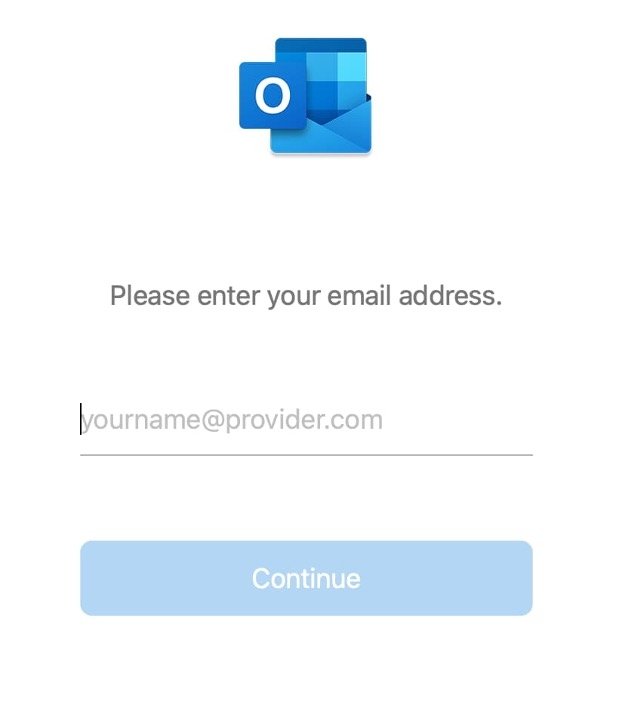
- Go to File > Info > Add account.
- Sign in with Gmail account.
- Import Outlook emails to Gmail.
- Click on your Gmail account in the left-hand menu of the Outlook app to select it.
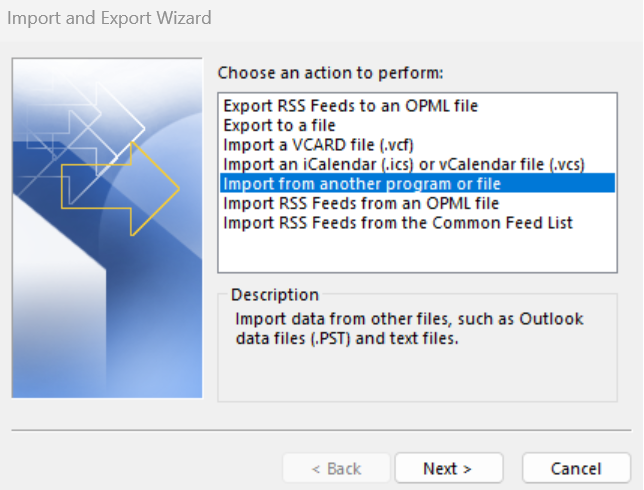
- Go to File > Open & Export > Import/Export > Import from another program or file.
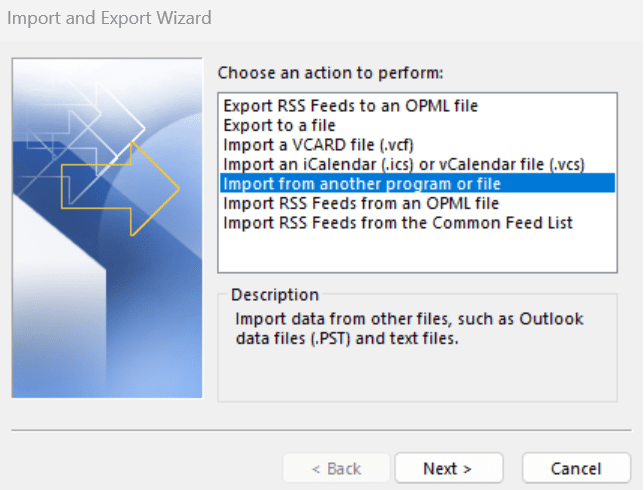
- Select the backup file (from the saved location you chose in Step 2b) and wait until the import is complete.
- Wait for ‘Synchronizing” to complete. You will see the “Synchronizing” message in the lower right corner of the Outlook desktop app disappear when it is finished.
- Sign in to your Gmail account in a browser and check the results.