
Focused Inbox
If you cannot see emails in Outlook that you should be receiving, try turning off Focused Inbox. If this does not work, check the Junk Email folder.
Windows - Legacy Outlook
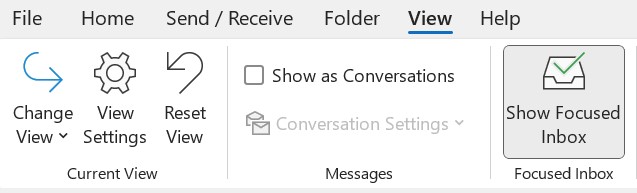
At the top of your screen, click View.

- If Show Focused Inbox is highlighted, click it to turn it off.
Mac
- Open Outlook on your computer.
- On the upper left corner of your screen, click Outlook.
- Click Settings.
- Next to Focused Inbox, uncheck the box that reads Sort Messages into Focused and Other.
Webmail
- Go to outlook.office.com on your computer.
On the upper right of your screen, click the Settings gear icon.

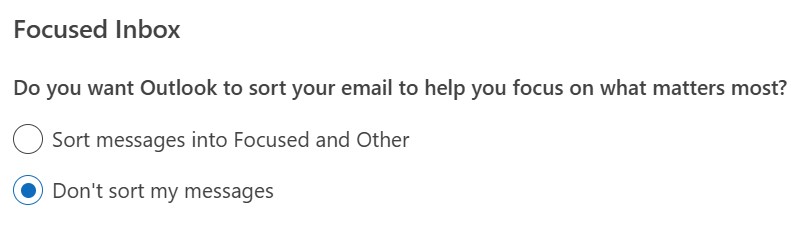
- On the right side of the screen under Focused Inbox, select Don't sort my messages.
- On the bottom right corner of the screen, click Save.
Android
- Open Outlook.
- On the upper left corner of your screen, click on the Accounts icon. This may be a circle with your picture in it or your initials.
- On the bottom left corner of your screen, click on the Settings gear icon.
- Click Mail.
- Under Inbox, toggle Focused Inbox off.
iOS
- Open Outlook.
- Click the Menu button in the upper left corner of your screen. It will look like three lines.
- Click the Gear icon on the lower left corner of your screen.
- Click Mail.
- Under Inbox, toggle Focused Inbox off.
View Changed
If Outlook looks differently than it should, try changing the view. You can customize the text size and layout of Outlook.
New Outlook
- Click the View tab.
- Click the more options button in the top right (...).
- Click Customize.
- NOTE: you can also customize your toolbar, layout, and other Outlook features here.
- Click Reset in the bottom left.
- Click Save.
Legacy Outlook
- Click the View tab.
- Under View Settings, you can make changes to the individual elements of Outlook.
- If you’d like to reset the view to its default, click on Reset View.
- If you would like their reading pane moved or turned off, you can make those changes via the “Reading Pane” button.