
Spam Filter
All campus email is inspected for spam, viruses and malware. Messages are handled as follows:
- Message is checked against end user and organizational blocked and safe senders lists
- Message is scanned and cleaned of virus and malware content
- Messages that have a high confidence level of spam content is delivered to the Junk Mail folder
- The highest confidence level spam is discarded
- All remaining message is delivered to the Inbox
Using Junk Mail
Outlook automatically forwards emails that it believes to be junk into a Junk Email folder. Here, you can find instructions for viewing junk mail, removing an email from junk mail, adding an email to junk mail, adding a user to the blocked user list, or adding a user to the safe senders list. If you receive an email that you suspect to be phishing, forward it to phishing@stlawu.edu for further investigation.
Outlook Webmail
Outlook Webmail can be reached at outlook.office.com on a computer or phone.
Viewing Junk Mail
- Go to outlook.office.com and sign in with your St Lawrence University email address and password. If prompted, complete the authentication request.
- On the left of your screen, scroll down until you see a folder named Junk Email.
- Click on this folder to open it.
Removing an Email from Junk Mail
If you see an email in Junk Mail that you believe to be legitimate, you can move the email back to your inbox. Make sure that you trust the sender, and don't click on any links.
- Open the Junk Email folder on Outlook.
- Click on the email that you would like to move.

- There will be a banner below the sender's name. Click It's not junk.
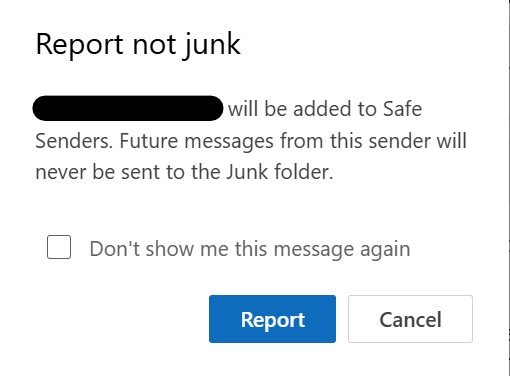
- On the pop-up that appears, click Report. Only click report if you are certain that this is a trusted sender.
- The email will now appear back in your Inbox. Future messages from this sender will never be marked as Junk.
Reporting Junk Email
- If you receive an email in your Inbox that you suspect to be spam or junk, you can send it to the Junk folder manually.
- In your Inbox, click the email that you would like to mark as junk.

- On the left side of the email next to the sender's name, there will be a series of buttons. Click the button that looks like an envelope with a yellow warning circle.
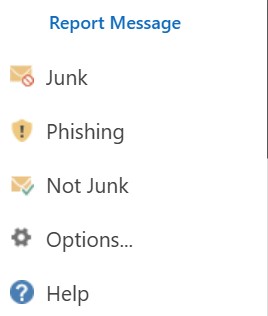
- Choose the option that reads Junk.
- After a moment, a pop-up screen will appear. Click Report.
- The junk email will now be moved from your Inbox to your Junk folder.
Add Users to the Blocked Senders list
The Outlook Junk Email filter allows you to automatically redirect messages from specified accounts into your Junk mail folder so they do not clutter up your inbox.
- On the top right of the screen, click the Settings gear icon.
- In the second tab in the box that appears, click the Junk email button.
- Under "Blocked senders and domains", click + Add.
- Type in the email address you want to add to the list.
- Press the Enter key on your keyboard.
- Click Save.
Add Users to the Safe Senders list
Email addresses and domain names in the Safe Senders List are never treated as junk email, regardless of the content of the message. You can add your Contacts and other correspondents to the Safe Senders list to confirm you'll always receive their messages in your inbox.
- On the top right of the screen, click the Settings button (the button that looks like a cog).
- In the second tab in the box that appears, click the Junk email button.
- Under "Safe senders and domains", click + Add.
- Type in the email address you want to add to the list.
- Press the Enter key on your keyboard.
- Click Save.
Outlook App for Windows (Legacy)
Viewing Junk Mail
- Open Outlook on your computer.
- On the left bar on your screen, scroll until you find the Junk Email folder.
- Click on Junk Email to open it and view the emails.
Removing an Email from Junk Mail
- Open Outlook on your computer.
- Open the Junk Email folder on the left side.
- Click on the email that you would like to move.
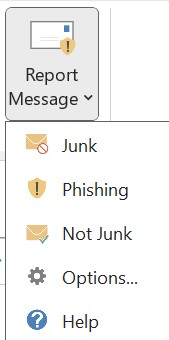
- Above the email message, click Report Message.
- Click Not Junk.
- On the pop-up that appears, click Report. Only click report if you are certain that this is a trusted sender.
- The email will now appear back in your Inbox. Future messages from this sender will never be marked as Junk.
Reporting Junk Mail
If you receive an email in your Inbox that you suspect to be spam or junk, you can send it to the Junk folder manually.
- Open Outlook on your computer.
- In your Inbox, click the email that you would like to mark as junk.
- Above the email message, click Report Message.
- Click Junk.
- In the pop-up that appears, click Junk.
Add Users to the Blocked Senders list
The Outlook Junk Email filter allows you to automatically redirect messages from specified accounts into your Junk mail folder so they do not clutter up your inbox.
- Open Outlook on your computer.
- Click the More Options button (the button with three dots at the top right of the screen).
- Under "Move and Delete", click Junk.
- Click Junk Email Options.
- Click the Blocked Senders tab.
- Click Add...
- Type in the email address you want to add to the list.
- Click OK.
- Click OK.
Add Users to the Safe Senders list
Email addresses and domain names in the Safe Senders List are never treated as junk email, regardless of the content of the message. You can add your Contacts and other correspondents to the Safe Senders list to confirm you'll always receive their messages in your inbox.
- Open Outlook on your computer.
- Click the More Options button (the button with three dots at the top right of the screen).
- Under "Move and Delete", click Junk.
- Click Junk Email Options.
- Click the Safe Senders tab.
- Click Add.
- Type in the email address you want to add to the list.
- Click OK.
- Click OK.
Outlook App for Mac
Viewing Junk Mail
- Open Outlook on your computer.
- On the left bar on your screen, scroll until you find the Junk Email folder.
- Click on Junk Email to open it and view the emails.
Removing an Email from Junk Mail
- Open Outlook on your computer.
- Navigate to the Junk Email folder.
- Double-click on an email in the Junk Email folder to open it.
- At the top of the email, click Mark as Not Junk.
Reporting Junk Mail
If you receive an email in your Inbox that you suspect to be Junk, you can manually move it to your Junk Email folder.
- Open Outlook on your computer.
- Click on the email that you believe to be Junk.
- On the top bar, click Report.
- Click Report Junk or Report Phishing.
Add Users to the Blocked Senders list
The Outlook Junk Email filter allows you to automatically redirect messages from specified accounts into your Junk mail folder so they do not clutter up your inbox.
- In the toolbar on the top of the screen, click Tools.
- Click Junk Email Preferences.
- At the bottom of the list, click on the text that reads "Example: abc123@fourthcoffee.com..." to highlight it. Then click it again to enter text.
- Type in the email address you want to add to the list.
- Click the + button.
Add Users to the Safe Senders list
Email addresses and domain names in the Safe Senders List are never treated as junk email, regardless of the content of the message. You can add your Contacts and other correspondents to the Safe Senders list to confirm you'll always receive their messages in your inbox.
- Open Outlook on your computer.
- Click on an email sent by the person you would like in the Safe Senders List.
- Click on the user's name.
- In the box that appears, scroll down and click Add to Contacts on the bottom.
- Click Save.
More Information
For more information about Spam Folders and Junk Mail, refer to Microsoft's official support article here: