
What’s changing?
Beginning September 30, Zoom is updating the look and navigation of the Zoom web portal. The new layout places common actions such as Start, Join, and Schedule on the Home page, while other tools have moved into menus in the upper-right corner.
Who is affected?
This change affects the Zoom web portal at https://stlawu.zoom.us/ . The Zoom desktop and mobile applications will continue to look and function the same.
The biggest navigation changes are:
- The former left-side navigation menu has changed.
- A new waffle menu is available in the upper-right corner.
- Account tools are available from the profile icon under Profile.
- Recordings and transcripts are available from the Home page and from the My Account area.
Create or Schedule a Meeting from the Home page
This option will take you directly to the meeting creation page.
- Go to the Zoom web portal: https://stlawu.zoom.us/ and sign in.
- On the new Zoom homepage, choose Schedule from the action buttons.
- Similar to the desktop app, you can choose New meeting to start a meeting right away or Join an existing meeting

Where Is the Meetings Page?
The Meetings option below will take you to your overall meetings page, where you can schedule a meeting, view upcoming and previous meetings, manage your Personal Meeting Room, and more.

- Go to the Zoom web portal: https://stlawu.zoom.us/ and sign in.
- Select the new waffle menu in the upper right corner and choose Meetings.
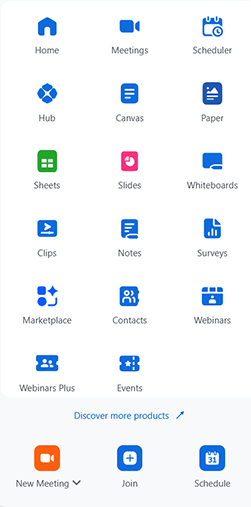
Important: Do not confuse Zoom’s tool called Canvas with Canvas, our Learning Management System. In Zoom, Canvas is the new name for what was previously called Zoom Docs.
Recordings, Transcripts, and Account Settings
Recordings can be accessed from the Home page, by selecting the Recordings button.

You can also access Recordings and Transcripts from the My Account area:
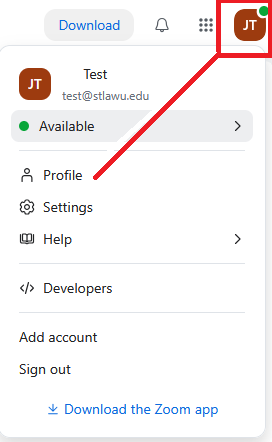
- Choose your profile icon (or picture) in the upper right.
- Choose Profile to edit your picture, name, and Personal Meeting ID.
- Recordings and Transcripts will appear in the left-side menu.
This page is just a summary to help navigate a few of the common tasks in Zoom. For a more complete overview, please refer to: Introducing the new Zoom Web experience