
What is a wireless certificate?
- A wireless certificate provides an additional layer of security when connecting to SLU's wireless networks. It also provides additional benefits to campus, such as the ability for university computers to seamlessly reconnect to the network while on campus, and allows our users to sign into any public computer on campus as well.
- Wireless Certificates expire after a period of time to maintain up-to-date security. When the old certificate lapses, a new one needs to be provided and computers/devices need to accept the change.
What does this mean for me?
- If you are currently working or studying off-campus, please connect to the VPN as often as possible for the next few days while the needed resources for this certificate upgrade are distributed.
- The first time you connect to SLU-Wifi or Eduroam on/after August 8th, you may be prompted to accept or trust a new certificate. While this may come in the form of a pop-up, this is legitimate and you should choose to accept/trust it. After that, Wi-Fi will continue working normally, and no other changes should be noticeable.
- If you find you are having trouble getting onto the Wi-Fi after this update, our recommendation would be to remove or "forget" SLU-Wifi/Eduroam from your device, then manually connect to them again.
- If you find you're still having trouble, please contact the IT Help Desk at 315-229-5770 or submit a ticket.
What will this look like?
Windows
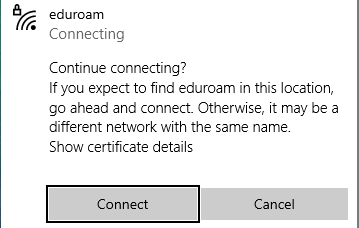
On Windows, you'll click the "Connect" button to accept the new wireless certificate.
Mac
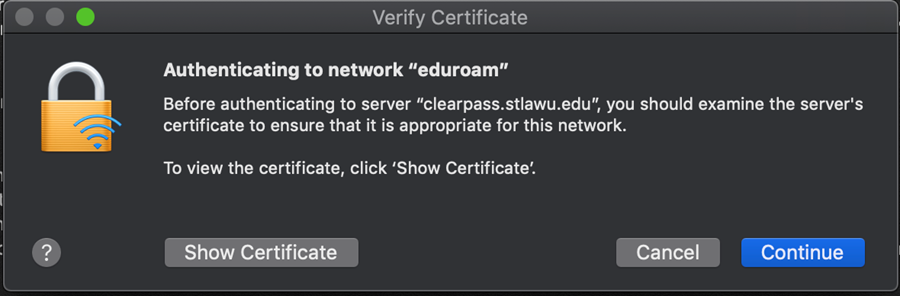
On Mac, you'll click "Continue" to accept the new wireless certificate.
iOS
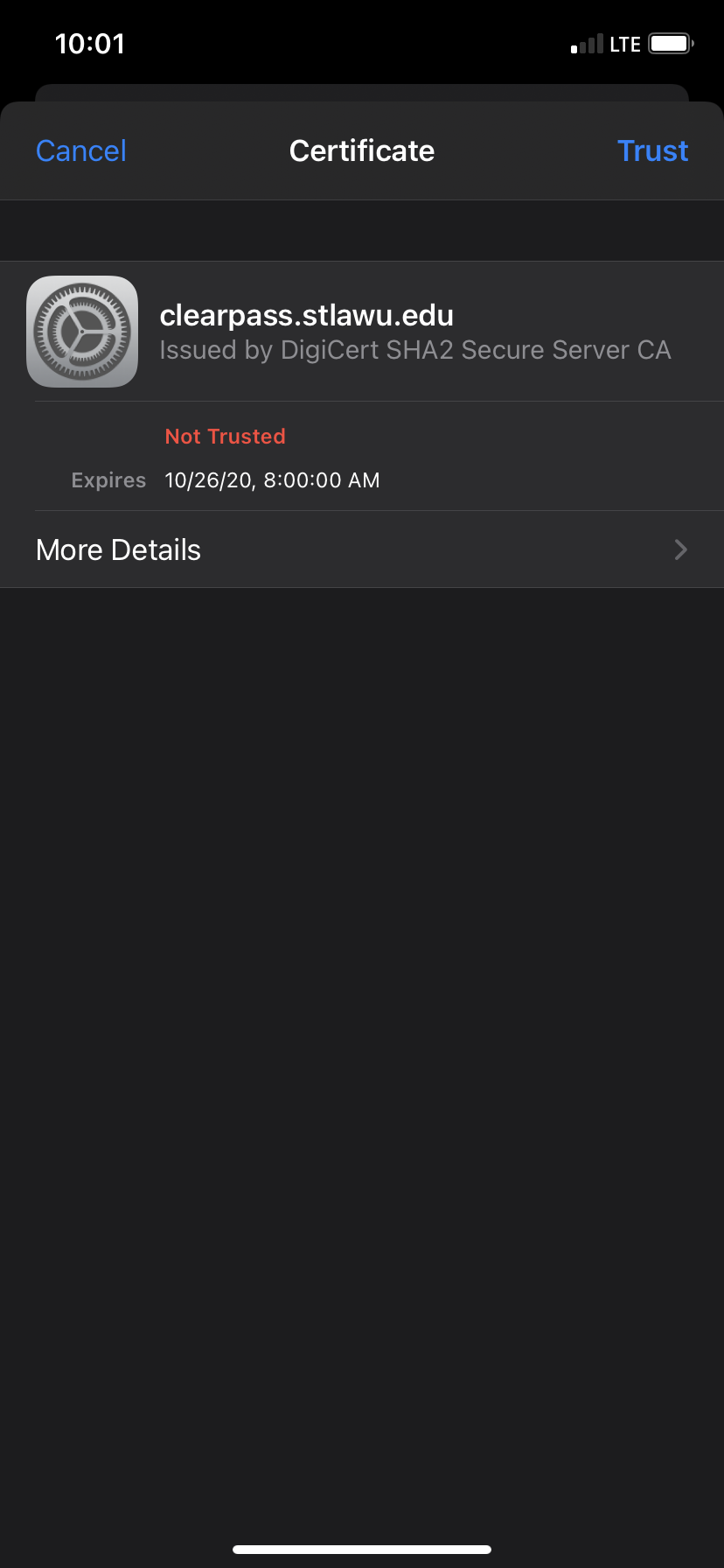
On iOS (iPhone/iPad) you'll click "Trust" to accept the new wireless certificate.
Android
On Android devices, you'll first need to navigate to your Settings > Network and Internet >Wifi. Locate and forget SLU WiFi and Eduroam by clicking them and then selecting "forget". Now, you'll reconnect your device to WiFi.