
Process
Login and Access the site dashboard
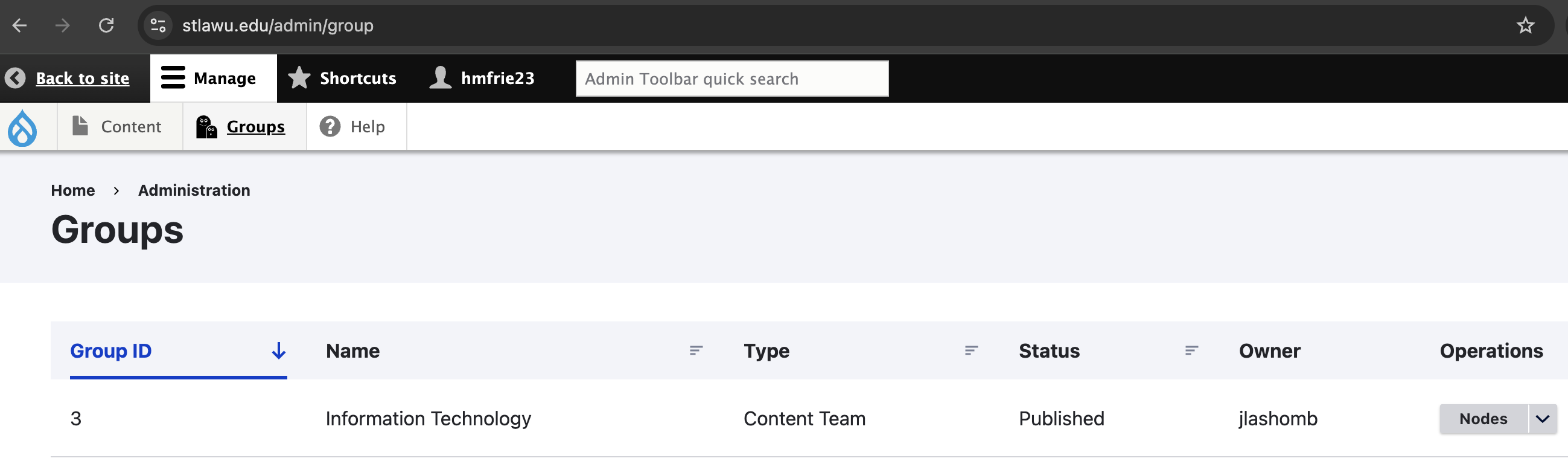
First you must log into the site by going to https://www.stlawu.edu/user/login, then you will see an editor toolbar at the top of each St. Lawrence University website page that will give you additional options for interacting with the website. Navigating to Manage then Groups will allow you to view any groups/sections of the site that you have access to and interact with their dashboards. Under the Operations column you can click the "Nodes" option to view a dashboard of all content associated with the department/group.
In the content/nodes dashboard for the group. You can use the button at the top to "Add new content" to that section of the website or browse the existing content associated with the group. You can filter the list and click the title to view the page or the Edit button under Operations to edit it directly.
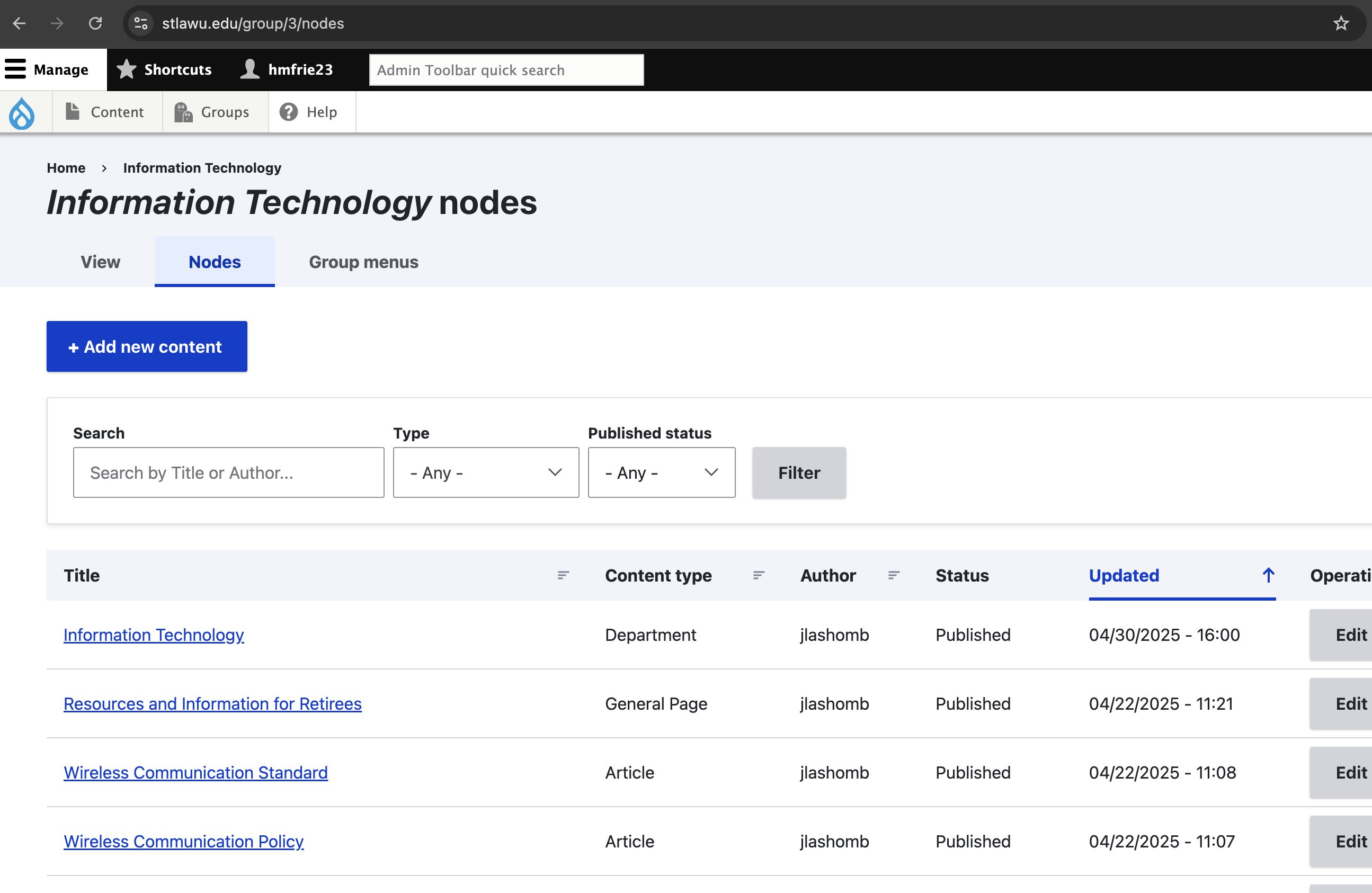
This will be the primary way that you review and update articles that are already created on the main website, as well as create new articles that by copying and pasting them in from TDx.
Working with content
Edit/Add Article Form
Whether you edit or create a new article, you will see the Article Edit form. This consists of fields for Title, Type, Body, Tagging, and Related Articles.
- Title - The Article Title
- Type - The Article Type, which in most cases will be How-To, but feel free to adjust if another type seems fitting. We're exploring strategies around classifying types of articles.
- Body - This holds all of the content of the articles. You should be able to view the article in TDx and copy and paste it into this body field. Images/media won't carry over and will need to be re-added manually (described separately). The headings and some formatting will most likely need to be adjusted. It's important that heading structure is adjusted to be appropriate and hierarchical starting with H2 (as the article title is the H1).
- Tagging
- Department - This should always be set to Information Technology for these articles, but additional departments can be added if the article crosses into another department.
- System - We have an inventory of University Systems that users can log into. Articles can be tagged as being associated to one of these systems. The listing of available systems can browsed on our Beta Logins page, https://www.stlawu.edu/logins.
- Campus Resources - This is a catch-all for other general tagging related to university services and resources. The options are limited, but we would like to work together to expand it so that similar articles can have dedicated listing pages under these terms. Examples: "Technology > Printing" or "Software and Apps > Panopto"
- Same As - This is a special field that can be used if the article is a reiteration or duplicate of an article found at another source. For instance, if have instructions for registering for courses built into the course registration system and duplicate them here, we should add a Same As link to direct users to that page as well and the system will automatically add meta tagging to improve search engine optimization (SEO) for the content.
- Related Articles - Any related or referenced articles can be added here and they will appear in their own section at the bottom of the page with teasers.
