
Overview
This article explains how to enter time in Self Service.
Instructions
- Navigate to https://colss-prod.ec.stlawu.edu/Student and login using your St. Lawrence Username and Password
- Click on the Employee button:

- Click on the Time Entry button

- Choose the appropriate POSITION and WEEK of the pay period to enter time or view previous entries

Note: This is a view of the timecard you may see after you have entered time.
Below in the upper left corner you can see the Position ID and Title, and under those fields, your supervisor’s name and title, a summary of the hours entered and the status of the time card, i.e., unsubmitted.
On the upper right side is the Save button, you can use to save, but the time card will also automatically save and show you the time it was saved. You can click on the View Leave Balances to see your leave balances.
You can use the arrows to navigate between the timecard weeks, depending which week you are currently on, go forward or backward.
The highlighted line designates a Holiday.
If you have a work schedule the hours are shown across the top of the timecard.
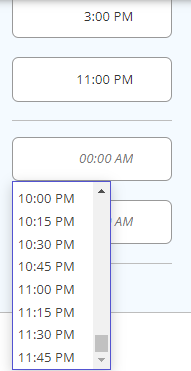
You can enter time a number of ways: 3 pm or 3:00 pm; 3 PM or 3:00 PM or use the dropdown options and choose the time (AM or PM); the tab key will bring you to the next field to enter your time.
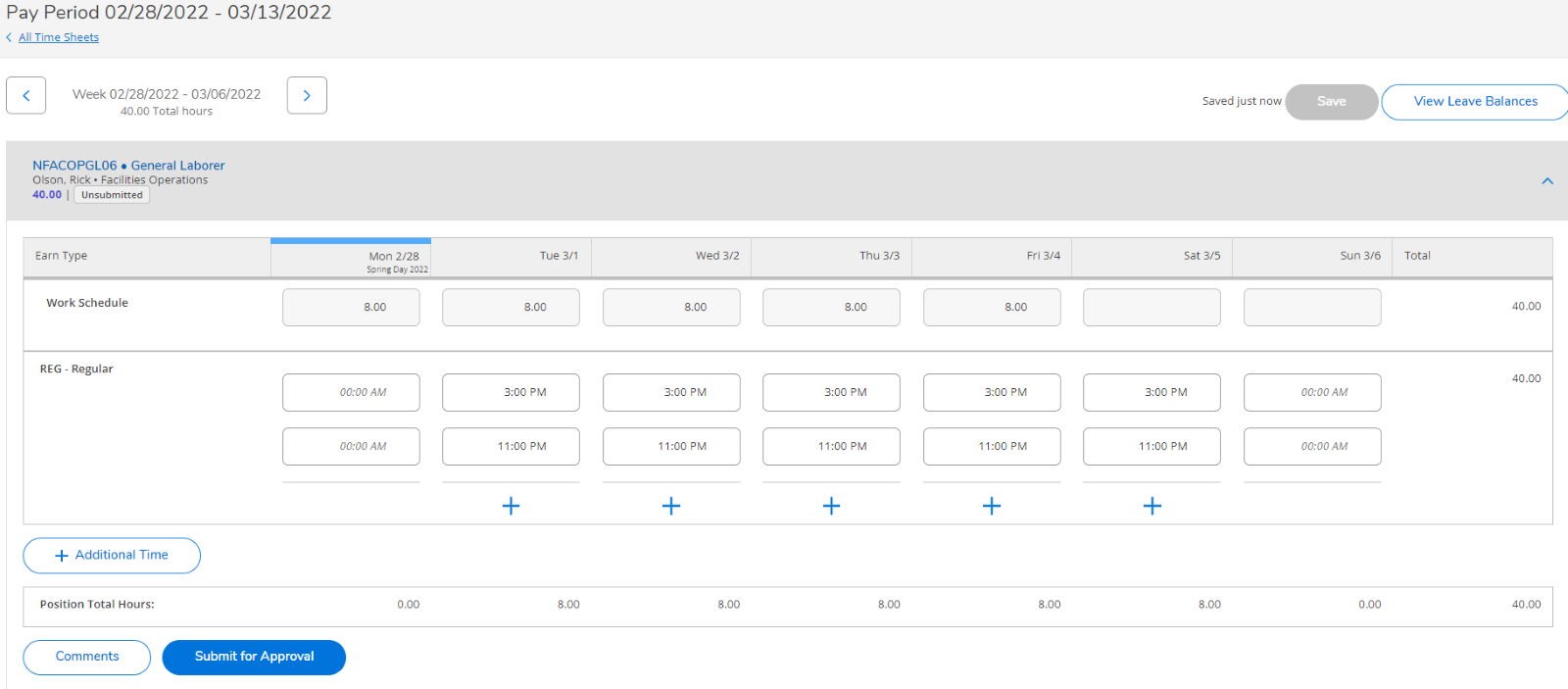
- Click on the PLUS sign to add additional time in/time out options for that day, if applicable.
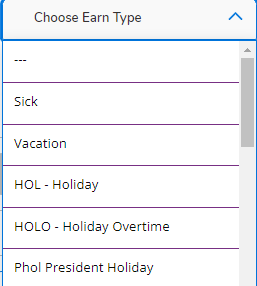
- Use the + Additional Time tab to select from the Choose Earn Type options or click Remove
- Enter the total hours under the appropriate day(s).
